In an increasingly digital world, managing your own mail server can feel daunting, but the autonomy it offers is worth the effort. Mail-in-a-Box simplifies the process, making it surprisingly straightforward to transform your VPS into a functional mail server.
Ubuntu 24.04 is the latest powerhouse operating system, packed with stability and security improvements. Pairing it with Mail-in-a-Box can not only enhance security but also give you complete control over your emails.
In this guide, we’ll navigate the setup process in easy steps, ensuring you have all the tools you need to get started confidently. Get ready to take charge of your email and step closer to digital independence.
Installing Dependencies for Mail-in-a-Box
Before you dive into the Mail-in-a-Box installation, you’ll need to ensure your system has all the necessary components. The process is straightforward but crucial for a smooth setup.
Update Ubuntu Package List
First, let’s get your package list up-to-date. Open your terminal and run:
sudo apt updateThis simple step keeps your system informed about the latest software versions and patches, ensuring seamless package installations thereafter.
Install Necessary Packages
With your package list refreshed, it’s time to install a few key software dependencies. In your terminal, execute:
sudo apt install curl git sudo -yThese packages form the backbone of Mail-in-a-Box, enabling it to function correctly and safely on your server. Curl helps in fetching and transferring data, Git allows version control, and Sudo facilitates necessary administrative operations. Installing git ensures that your server setup is robust and efficient.
Now that the essential packages are installed, you’re well-prepared to proceed with setting up Mail-in-a-Box on your Ubuntu 24.04 server. Happy configuring!
Downloading and Running the Mail-in-a-Box Script
With your dependencies in place, the next step is to download and run the Mail-in-a-Box script. This script automates many of the setup processes, making the installation of your mail server a breeze.
Obtain the Latest Version
First, you’ll grab the latest version of the Mail-in-a-Box source code. Navigate to your home directory using the terminal and clone the repository with:
cd ~

git clone https://github.com/mail-in-a-box/mailinabox
This action downloads everything you need to get started and ensures you’re working with the most up-to-date software features and security enhancements.
Execute the Installation Script
Now, it’s time to let the script take over. Make the installation script executable and start it with the following commands:
cd mailinabox

sudo setup/start.sh
The script will guide you through a series of prompts to configure essential settings. Ensure you have your domain information ready, as it will be necessary during the setup.
Following these steps, you’ll soon transform your server into a full-fledged mail hub. Let the magic of Mail-in-a-Box unfold!
Configuring DNS for Mail-in-a-Box
A crucial part of setting up your mail server is DNS configuration. This ensures your emails reach their correct destinations and helps maintain server credibility.
Set Up Domain Records
Start by accessing your domain registrar’s DNS management panel. You’ll need to configure a few DNS records:
- NS Records: Point your domain’s nameservers to the Mail-in-a-Box server.
- A Record: Create an A record that points to your server’s IP address.
- MX Record: Ensure your MX record points to your domain, not a third-party service.
- SPF, DKIM, and DMARC Records: These records are essential for email validation and should be added as TXT records.
Mail-in-a-Box provides a helpful admin interface to guide you through setting these records accurately. Once your DNS changes propagate, your server will be ready to send and receive emails efficiently. Proper DNS configuration establishes the foundation for a reliable and secure mail server. Enjoy peace of mind, knowing your emails are configured to travel smoothly and securely!
Securing Your Mail Server with SSL
Protecting your email communications with SSL encryption is essential. It ensures that emails sent and received are secure and private from prying eyes.
Generate and Install SSL Certificates
Luckily, Mail-in-a-Box simplifies the process of adding SSL certificates. After setting up your server, you can leverage Let’s Encrypt for free and trusted SSL certificates.
Navigate to the Mail-in-a-Box admin panel in your web browser. You’ll likely do so using:
https://yourdomain/adminLog in with your admin credentials, then go to the “TLS (SSL) Certificates” section.
From here, you can automatically generate and install SSL certificates for your domains. Mail-in-a-Box handles renewals automatically, making ongoing maintenance a breeze. By securing your mail server with SSL, you not only protect data but also enhance trust with recipients. Trust is key in email communication, and with SSL, you’re on the right track.
Conclusion: Final Steps and Verification
Congratulations on setting up your Mail-in-a-Box server! You’ve journeyed from installation to securing your digital communications.
Before you wrap up, there are a few final steps to ensure everything is working smoothly. First, send test emails to verify that your server can both send and receive messages without any hiccups. Check your spam folder just in case—sometimes initial emails need a little extra persuasion to land in the inbox.
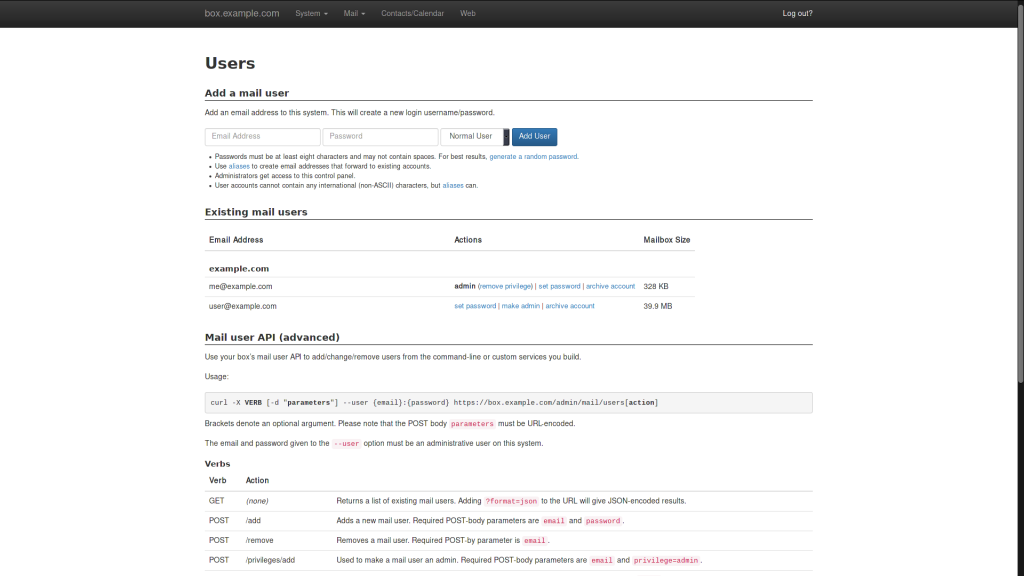
Remember to frequently visit the admin panel to keep an eye on server health and pending updates. This proactive approach ensures your server remains secure and efficient.
With these steps complete, you’re now managing your very own mail server with confidence. Enjoy the independence and control that comes with hosting your own email!