Looking to supercharge your torrenting experience on Ubuntu 24.04? Installing rTorrent with the sleek, efficient RuTorrent web interface could be your perfect solution. This combo not only streamlines downloading but also offers powerful, user-friendly management of your torrent files.
In this guide, we’ll walk you through every step of the installation process, ensuring you have a reliable and secure setup tailored just for your needs. Whether you’re a seasoned Linux user or just starting, this tutorial makes setting up a breeze.
Stay tuned as we delve into the essentials of rTorrent and RuTorrent, promising you a robust and seamless torrenting experience. Get ready to transform your server into a full-fledged torrenting powerhouse!
Prerequisites for Installing rTorrent and ruTorrent on Ubuntu 24.04
Before diving into the installation journey, let’s ensure you’re well-prepared. A little groundwork goes a long way in making the process smooth and fuss-free.
Firstly, make sure you have an Ubuntu 24.04 server up and running. A clean, updated system ensures optimal performance.
You’ll also need root or superuser privileges to run some of the commands during installation. This ensures that you have the control necessary for installing software and managing configurations.
Having SSH access to your server is a real timesaver, allowing you to execute commands from your terminal while keeping your hands free for a cup of coffee.
Finally, ensure your system has enough RAM and storage. Although rTorrent and RuTorrent are lightweight, a bit of extra resources keeps things running smoothly, especially if you plan on handling multiple downloads.
That’s it for the prep—next up, let’s get to the heart of the setup!
Installing rTorrent on Ubuntu 24.04
Let’s jump straight into getting rTorrent up and running on your Ubuntu 24.04 system. We’ll start by ensuring everything’s up to date and then move on to installing rTorrent itself.
Update and Install Dependencies
Before installing rTorrent, it’s crucial to update your package list. Open your terminal and execute:
sudo apt update && sudo apt upgrade -yOnce everything is up-to-date, we need to install the required dependencies. Run the following command:
sudo apt install libxml2-dev libncurses5-dev libcurl4-openssl-dev libsigc++-2.0-devThese packages provide the necessary libraries and tools that smooth the way for rTorrent’s installation and operation.
Download and Configure rTorrent
With dependencies sorted, let’s download and configure rTorrent. First, install rTorrent via the package manager:
sudo apt install rtorrentOnce installed, create a configuration file. In your home directory, use:
nano ~/.rtorrent.rcIn this file, you’ll specify settings like download directories and limits on download speed. Make sure to adjust these to fit your needs.
Save the file, and you’re set! rTorrent is now ready to roll; next up, we’ll integrate it with RuTorrent for that slick web interface experience.
Setting Up the ruTorrent Web Interface
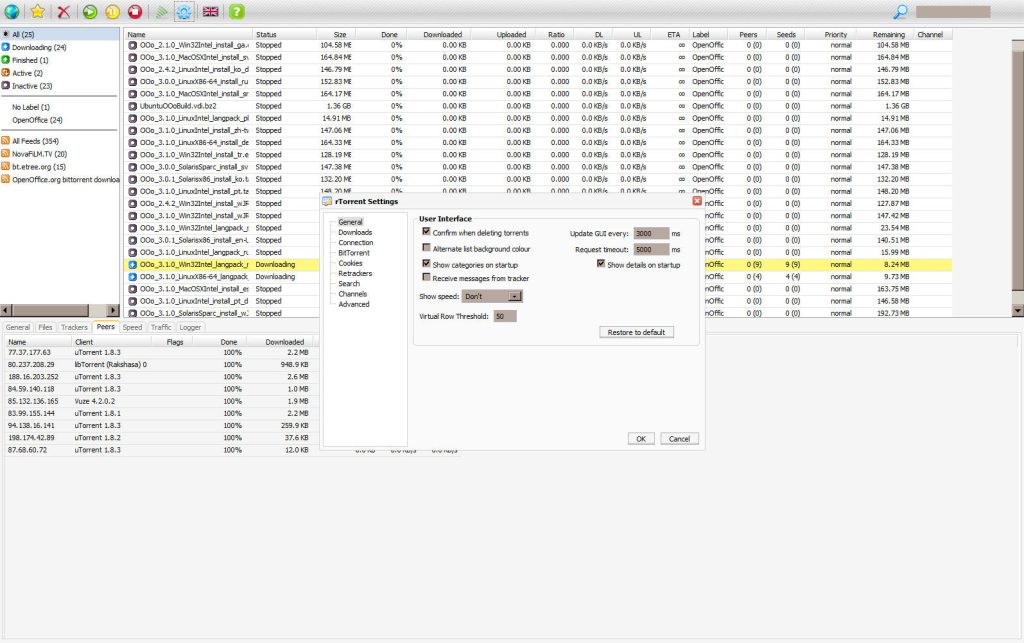
Now that rTorrent is installed and humming along, it’s time to introduce the stylish and efficient RuTorrent web interface into the mix. This step will bind functionality with an easy-to-navigate user interface.
Install Web Server and PHP
First things first, let’s get a web server and PHP on your system. RuTorrent relies on them to display its sleek interface. You’ll want to install Apache and the necessary PHP components. Open your terminal and run:
sudo apt install apache2 php php-cli php-fpm php-json php-curlThis command sets up Apache as your web server and installs PHP, which is crucial for running RuTorrent.
Configure ruTorrent Plugins
Once you have your web server ready, it’s time to enhance RuTorrent with plugins that extend its functionality. These can give you access to features like disk space usage, effective traffic management, and more.
Head to your RuTorrent directory:
cd /var/www/html/rutorrent/pluginsHere, you can add or manage plugins by simply placing their files in the directory. Make sure to only use plugins from trusted sources to maintain security.
With the server and interface in place, you’re ready to manage torrents with efficiency and style. Enjoy your new setup!
Secure Your rTorrent and ruTorrent Installation
With rTorrent and RuTorrent up and running, securing your setup is crucial. A vigilant eye on security ensures that your system remains robust against any potential threats while maintaining seamless performance.
Configure Firewall Rules
Begin by setting up firewall rules using UFW (Uncomplicated Firewall) to limit access only to essential ports. First, ensure UFW is active:
sudo ufw enableNext, allow SSH through the standard port (usually 22) to maintain remote access:
sudo ufw allow sshFor web traffic, permit HTTP (port 80) and, if you have SSL configured, HTTPS (port 443):
sudo ufw allow 80/tcp
sudo ufw allow 443/tcp
Lastly, you should secure the port that RuTorrent uses. Consider allowing it only from trusted IP addresses to add an extra layer of protection.
sudo ufw allow from to any port By taking these steps, you’ll shield your torrent setup from unauthorized access while keeping it easily accessible for you. Enjoy torrenting with peace of mind!
Conclusion: Streamlining Your Torrent Management with rTorrent and ruTorrent
Wrapping up, you’ve just built a powerful torrenting setup with rTorrent and RuTorrent on your Ubuntu 24.04 system. This combination offers a compelling blend of performance and user-friendly management capabilities.
From installing the essential components to ensuring tight security and functionality, each step enhances your download efficiency and control. The robust command-line power of rTorrent, paired with the intuitive web interface of RuTorrent, gives you everything you need right at your fingertips.
This streamlined setup not only respects your server resources but also ensures that your torrenting activities are efficient and secure. Now, you can enjoy a hassle-free torrenting experience, confidently managing your downloads and uploads with ease.
Congratulations on achieving a top-notch torrent management system!