In our fast-paced digital world, managing files securely and efficiently has become a top priority. Nextcloud offers a self-hosted solution for syncing and sharing your files, putting you in complete control of your data. Whether you’re looking to collaborate on projects or simply keep your personal documents in check, setting up Nextcloud can streamline your digital life.
Ubuntu 24.04, with its robust security and user-friendly interface, provides an ideal platform for hosting Nextcloud. This guide will walk you through the process step-by-step, making it simple even if you’re not a tech guru.
Before you dive in, ensure your Ubuntu 24.04 system is up-to-date, and you have administrative access. With just a few commands and some configuration tweaks, you’ll have your own cloud service up and running in no time.
So, get ready to turn your Ubuntu system into a powerful, private cloud environment with Nextcloud.
Preparing Your Ubuntu 24.04 Server
Before diving into the Nextcloud installation, let’s ensure your Ubuntu 24.04 server is primed and ready. Start by updating your system packages. Open your terminal and run:
sudo apt update && sudo apt upgrade -yThis command ensures all your software is current and any security vulnerabilities are patched. Once your system is updated, it’s time to install the necessary dependencies. Begin by installing Apache, the MySQL database, and PHP, often referred to as the LAMP stack. Execute the following command:
sudo apt install apache2 mariadb-server libapache2-mod-php8.0Don’t forget PHP extensions crucial for Nextcloud. Install them using:
sudo apt install php8.0 php8.0-gd php8.0-mysql php8.0-curl php8.0-mbstring php8.0-intl php8.0-bcmath php8.0-xml php8.0-zip php8.0-apcuLastly, ensure your server’s firewall allows traffic on the required ports. Allow HTTP and HTTPS through UFW:
sudo ufw allow 80/tcp
sudo ufw allow 443/tcp
You’re now set with a solid foundation to install and configure Nextcloud. Let’s get to it!
Installing Prerequisite Packages
Getting Nextcloud running smoothly starts with installing the correct prerequisite packages. First, set up the LAMP stack, which includes Apache, MySQL (or MariaDB), and PHP. Open your terminal, and enter:
sudo apt install apache2 mariadb-server libapache2-mod-php8.0With the key elements of the LAMP stack ready, it’s time to include the necessary PHP extensions. These extensions are crucial for Nextcloud to function properly. Execute the command below:
sudo apt install php8.0-gd php8.0-mysql php8.0-curl php8.0-mbstring php8.0-intl php8.0-bcmath php8.0-xml php8.0-zip php8.0-apcuEach of these extensions plays a role, from handling document formats to managing data processing tasks efficiently.
Lastly, restart Apache to ensure all changes are applied:
sudo systemctl restart apache2That’s it! With the prerequisite packages installed, you’re one step closer to running your own Nextcloud server. Now, let’s move on to configuring the database for Nextcloud.
Setting Up a Database for Nextcloud
With the server prepared, it’s time to set up a database specifically for Nextcloud. We’ll use MariaDB, an open-source database that’s reliable and easy to manage. Start by logging into the MariaDB shell with:
sudo mariadbOnce inside, you’ll create a database for Nextcloud. Enter the following command:
CREATE DATABASE nextcloud;Now, create a dedicated user with a strong password to interact with this database. Replace ‘your_password’ with a secure password of your choice:
CREATE USER 'nextclouduser'@'localhost' IDENTIFIED BY 'your_password';Give this user full privileges on the Nextcloud database, ensuring they can manage it effectively:
GRANT ALL PRIVILEGES ON nextcloud.* TO 'nextclouduser'@'localhost';Make sure to flush the privileges to apply the changes:
FLUSH PRIVILEGES;Finally, exit the MariaDB shell:
EXIT;With your database set up, you’re now ready to install Nextcloud itself, transforming your server into a personal cloud storage powerhouse.
Downloading and Configuring Nextcloud
With the preparatory steps out of the way, it’s time to download Nextcloud and get it configured on your system. Start by heading to the Nextcloud download page to grab the latest version, or simply run the following command to download it directly to your server:
wget https://download.nextcloud.com/server/releases/latest.zipNext, unpack the downloaded archive using:
unzip latest.zipMove the extracted Nextcloud files to the Apache web root directory with:
sudo mv nextcloud /var/www/html/Now, it’s crucial to set the correct ownership and permissions to ensure smooth operation. Assign the necessary ownership of the Nextcloud files to the Apache user with:
sudo chown -R www-data:www-data /var/www/html/nextcloudAdjust the permissions so that the server can read and execute the files while maintaining security:
sudo chmod -R 755 /var/www/html/nextcloudApache needs to be aware of these configurations. Enable the site and modules required by executing:
sudo a2enmod rewrite headers env dir mimeFinally, restart Apache to apply the settings:
sudo systemctl restart apache2With Nextcloud securely placed and configured, you’re ready to complete the installation through its web interface.
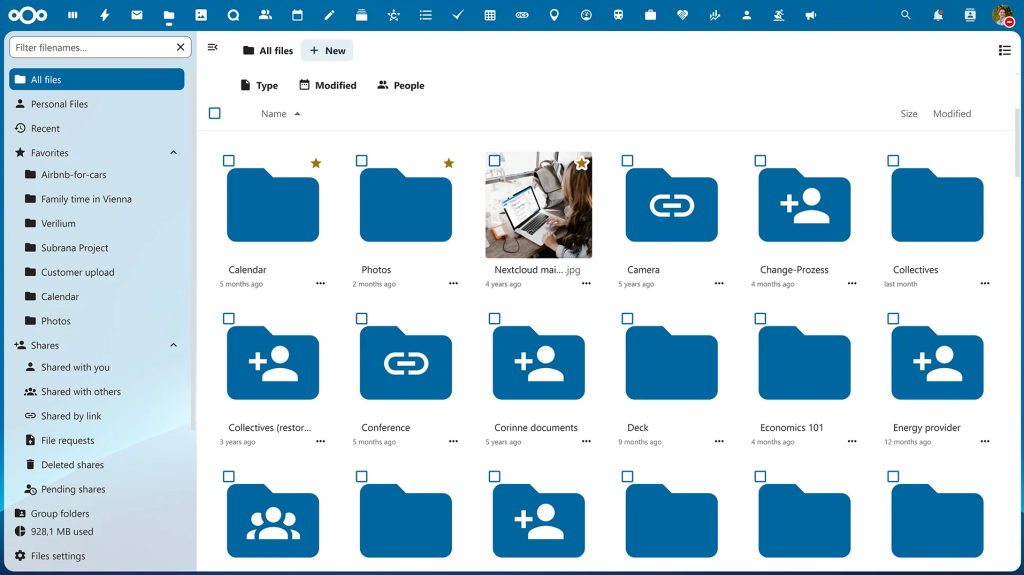
Conclusion: Successfully Running Nextcloud on Ubuntu 24.04
Congratulations! You’ve turned your Ubuntu 24.04 server into a private powerhouse with Nextcloud. By following this guide, you now have a tailor-made cloud solution, perfectly suited for your personal or professional needs.
Nextcloud offers the flexibility to extend its functionality through apps, so don’t hesitate to explore and enhance what it can do. Regularly updating your system and Nextcloud will keep your data secure and ensure smooth operation.
Embrace the freedom and security that comes with self-hosting your cloud service. Whether managing files, sharing with friends, or collaborating with colleagues, you’ve got the perfect tool at your fingertips.
Now, enjoy the seamless experience of having your own personal cloud!