If you’re looking to supercharge your game server management, Pterodactyl Panel on AlmaLinux 9 is your golden ticket. Pterodactyl is a powerful, open-source platform that simplifies the process of hosting game servers. Paired with the robust and reliable AlmaLinux 9, it offers a seamless experience for managing multiple game servers effortlessly.
Diving into the world of game server hosting might seem daunting at first, but setting up Pterodactyl Panel on AlmaLinux 9 is straightforward when you break it down step-by-step. Whether you’re a seasoned sysadmin or just getting started, this guide will walk you through the installation and initial setup, demystifying the process with easy-to-follow instructions.
Before jumping in, ensure your server meets the necessary requirements and is ready to handle the demands of hosting game servers. Get your environment ready, pour yourself a cup of coffee, and let’s embark on this journey to transform your server management experience with Pterodactyl and AlmaLinux 9!
Preparing Your AlmaLinux 9 Environment
Getting started with Pterodactyl Panel begins with a well-prepared AlmaLinux 9 environment. Ensuring everything is set up correctly from the start will save you time and potential headaches down the line. Let’s make certain every piece is in place before diving into the installation process.
System Requirements and Prerequisites
First, let’s confirm that your server has what it takes. For Pterodactyl Panel, ensure you have at least a dual-core CPU, 4GB of RAM, and 10GB of disk space free. A dependable internet connection is essential for smooth server management.
You’ll also need a fresh installation of AlmaLinux 9. Make sure you have root access or a user with sudo privileges to perform the installation tasks. Additionally, have your firewall and SELinux configured to allow incoming connections to the necessary ports for Pterodactyl.
Updating and Upgrading AlmaLinux
Start by updating your system to ensure you have the latest security patches and features. Open your terminal and execute the following commands:
sudo dnf update -y
sudo dnf upgrade -y
This process will bring your system up to date, ensuring compatibility and enhanced performance. Once this is done, you’ll be ready to proceed with the actual installation of Pterodactyl, knowing your environment is fully prepped.
Installing Pterodactyl Panel Dependencies
Before you can roll out Pterodactyl Panel, you need to gather a few essentials. Think of these dependencies as the core ingredients for your server recipe. Ensuring they’re in place will make the rest of the process smooth and straightforward.
Installing Required Packages
Let’s kick things off by installing some necessary packages. Open your terminal and run the following command to install the essential tools:
sudo dnf install -y epel-releaseWith EPEL enabled, you can now install packages like nodejs, git, and nginx, among others. Execute:
sudo dnf install -y nodejs git nginxThese packages will lay the groundwork for hosting and serving your Pterodactyl Panel efficiently. Make sure to verify that each package installs correctly before proceeding.
Setting Up Database Server
A sturdy database server is your next priority. For Pterodactyl, MariaDB is a great option. Begin by installing it with:
sudo dnf install -y mariadb-serverOnce installed, start and enable the MariaDB service:
sudo systemctl start mariadb
sudo systemctl enable mariadb
Next, secure your database installation by running:
sudo mysql_secure_installationFollow the prompts to set a root password and adhere to recommended security settings. With this, your database server is configured and ready to support your Pterodactyl Panel.
Setting Up Pterodactyl Panel
With your AlmaLinux 9 environment prepped, it’s time to set up the Pterodactyl Panel. This phase involves downloading the software and configuring necessary settings, paving the way for a streamlined gaming server management experience.
Downloading Pterodactyl
Let’s start by fetching the latest version of Pterodactyl Panel. Navigate to your web directory where you want to install Pterodactyl, and use Git to clone the repository. In your terminal, execute:
cd /var/www
sudo git clone https://github.com/pterodactyl/panel.git -b {release} --single-branch
Replace {release} with the desired version, such as 1.0.0. This command pulls in all the necessary files for the Panel, setting the foundation for a successful installation. Be patient as this may take a few moments.
Configuring Environment Variables
Next up is setting the environment variables. You’ll need to adjust these settings to fit your server’s specifications. First, create a copy of the environment example file:
cd /var/www/panel
cp .env.example .env
Open the .env file in your favorite text editor and customize the database credentials, app URL, and other essential settings. These variables act as the vital signs of your system, ensuring everything runs smoothly according to your infrastructure specifics. Double-check your entries before saving the file to avoid any misconfigurations down the line.
Configuring Nginx for Pterodactyl
With Pterodactyl Panel installed and your environment ready, it’s time to set up Nginx to serve your panel. As the web server, Nginx will handle incoming requests and direct them to the Pterodactyl application, ensuring smooth communication between users and the server.
Creating Nginx Configuration File
Kick things off by creating a new configuration file for Pterodactyl. Open your terminal and navigate to the Nginx sites-available directory:
cd /etc/nginx/sites-availableCreate a new file named pterodactyl.conf with your preferred text editor. Inside, add the necessary server block configuration tailored to Pterodactyl:
server {
    listen 80;
    server_name your_domain.com;

    root /var/www/panel/public;
    index index.php index.html;

    location / {
        try_files $uri $uri/ /index.php?$query_string;
    }

    location ~ .php$ {
        include snippets/fastcgi-php.conf;
        fastcgi_pass unix:/var/run/php/php8.0-fpm.sock;
    }

    location ~ /.ht {
        deny all;
    }
}
Remember to replace your_domain.com with your actual domain or server’s IP address.
Enabling and Restarting Nginx
Now, enable the site by creating a symbolic link to the sites-enabled directory:
sudo ln -s /etc/nginx/sites-available/pterodactyl.conf /etc/nginx/sites-enabled/Test your Nginx configuration for syntax errors with:
sudo nginx -tIf everything checks out, restart Nginx to apply the changes:
sudo systemctl restart nginxAnd there you go! Your Nginx configuration is now set to serve your Pterodactyl Panel, paving the way for seamless server management.
Conclusion
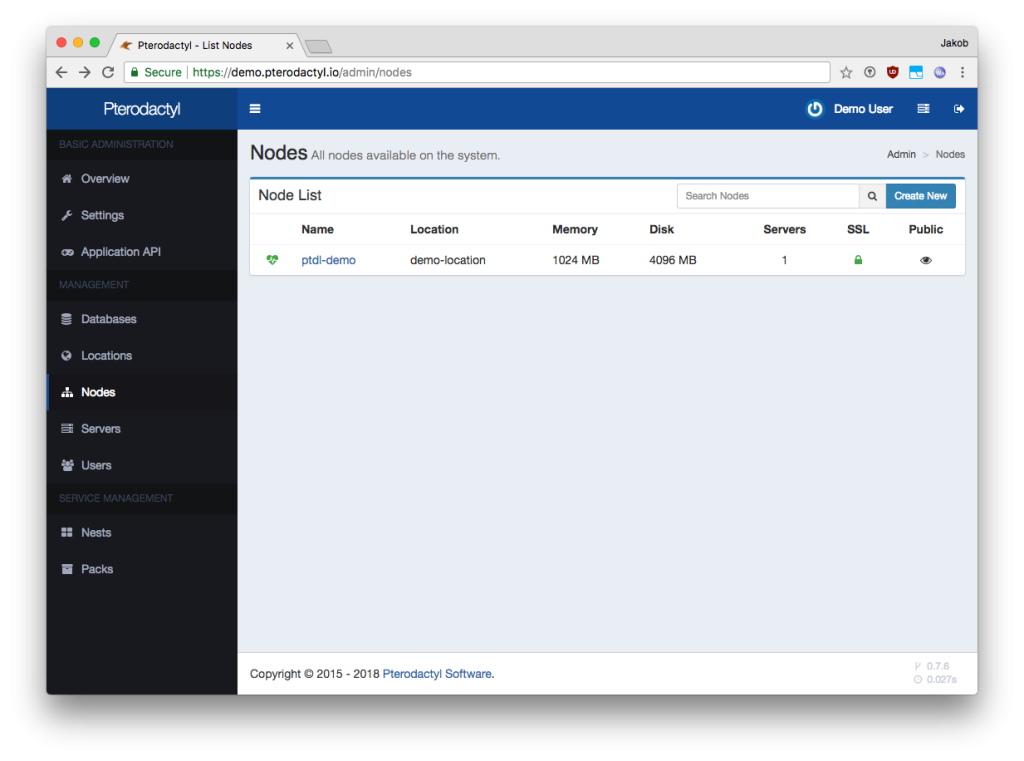
Congratulations! You’ve successfully installed and set up the Pterodactyl Panel on AlmaLinux 9. With your new setup, managing game servers has never been easier or more efficient.
By following this guide, you’ve streamlined server hosting using Pterodactyl’s intuitive interface and AlmaLinux’s reliable performance. This powerful combination not only empowers you to host games like a pro but also frees you to focus on what really matters—creating an enjoyable gaming experience.
As you grow more comfortable with the platform, don’t hesitate to explore additional features and customizations. The community around Pterodactyl is vibrant and supportive, offering plenty of resources and plugins to enhance your server’s capabilities even further.
Remember, server management is an ever-evolving journey, and by choosing Pterodactyl on AlmaLinux 9, you’ve taken a considerable step forward. Keep experimenting, learning, and most importantly, enjoying the process.