Are you ready to dive into observability with SigNoz on the latest Ubuntu 24.04? Perfect for developers and teams aiming to maintain healthy applications, SigNoz offers open-source application performance monitoring.
Getting started with SigNoz on Ubuntu 24.04 may seem daunting, but it’s easier than you think. Whether you’re a seasoned sysadmin or a curious newbie, this guide is crafted to be straightforward and effective.
In just a few steps, we’ll walk through setting up this powerful tool, from installation to initial configuration, optimizing your insights quickly.
With detailed instructions and clear explanations, let’s transform your Ubuntu system into a robust monitoring powerhouse with SigNoz. Ready? Let’s get started!
Installing Prerequisites for SigNoz on Ubuntu 24.04
Before diving into the SigNoz installation, let’s ensure your Ubuntu 24.04 system is ready for an effortless setup.
Update and Upgrade Existing Packages
Start by updating your system packages. This step ensures you have the latest versions and security patches installed:
sudo apt update && sudo apt upgrade -yRunning this command will refresh your package lists and upgrade outdated packages. It’s always a good first step to avoid potential conflicts later on.
Install Required Dependencies
Next, let’s install the essential dependencies. SigNoz requires Docker and Docker Compose, so having these tools ready is vital:
sudo apt install -y docker.io docker-composeEnsure Docker starts on boot and is running smoothly:
sudo systemctl enable docker
sudo systemctl start docker
Verify your installation by checking Docker’s status:
docker --version
docker-compose --version
With prerequisites handled, your system is now primed and ready for the SigNoz installation process. Let’s continue to bring SigNoz to life on your machine!
Downloading and Installing SigNoz on Ubuntu 24.04
Now that your system is ready, let’s move forward with downloading and installing SigNoz.
Fetch the Latest Release from GitHub
First, jump straight into getting the latest SigNoz release. You’ll want to clone the repository directly from GitHub to ensure you have the latest version:
git clone https://github.com/SigNoz/signoz.gitNavigate to the SigNoz directory where everything is set up for you:
cd signoz/deploy/This is where the magic begins!
Execute the Installation Script
With everything in place, it’s time to kick off the installation. SigNoz comes with an installation script that simplifies the setup process:
./install.shThis script will handle the heavy lifting, deploying all necessary services to get SigNoz up and running on your system.
Once the script completes, verify everything is set by checking the running status of SigNoz services. You should see something like this:
docker psYou’re now equipped with a powerful monitoring tool on your Ubuntu 24.04 system. Let’s configure and explore its capabilities next!
Configuring SigNoz After Installation
With SigNoz installed, the next step is configuring it to suit your needs. Let’s fine-tune your setup to ensure everything runs seamlessly.
Initial Configuration Steps
Start by accessing the SigNoz dashboard. Open your favorite browser and navigate to:
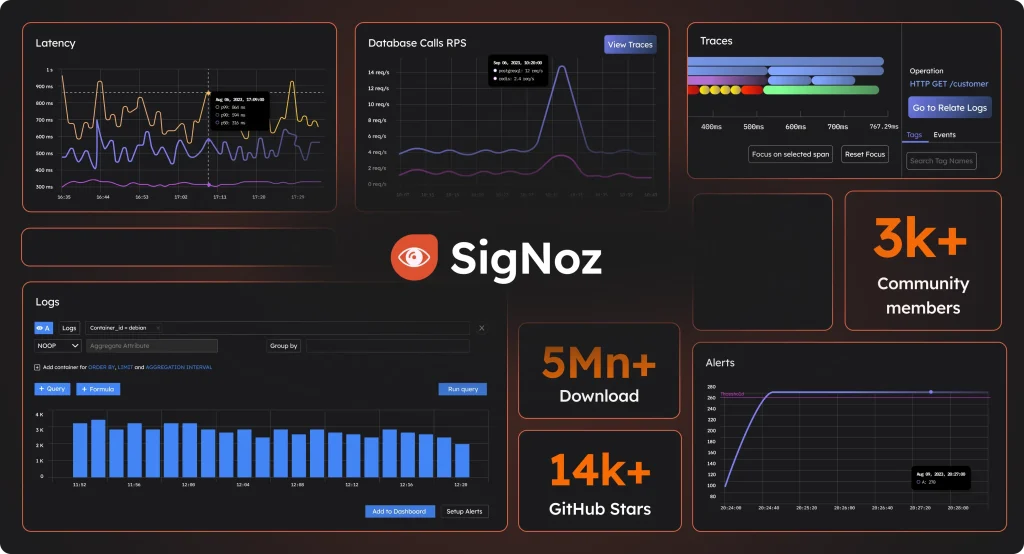
http://localhost:3000Log in using the default credentials provided during installation. Once you’re in, follow the guided setup to configure data sources and tailor the dashboard to your preferences.
Set up monitoring for your applications by selecting the relevant data collectors. Adjust settings like logging levels, preferred metrics, and alerting rules to suit your monitoring goals.
Don’t forget to secure your installation by updating default credentials and configuring appropriate user roles and permissions.
Verify Installation and Configuration
To ensure everything is operating correctly, verify that data is flowing into SigNoz. Use sample data or your application to generate metrics and logs.
Check that dashboards are updating in real-time and alerts are functioning as expected.
Confirm the integration by reviewing system logs and dashboards to make sure all configured settings are applied correctly.
With these steps, your SigNoz instance is now configured and ready to help you stay on top of your system’s performance!
Conclusion
Congratulations! You’ve successfully installed and configured SigNoz on your Ubuntu 24.04 system. By following these steps, you’ve set up a dynamic observability tool that provides real-time insights into your applications.
With SigNoz, you’re equipped to monitor metrics, logs, and traces effortlessly. This empowers you to make informed decisions and optimize application performance effectively.
Keep exploring SigNoz’s features to fully leverage its capabilities. As your applications grow, so will your need for detailed insights—it’s good to know SigNoz has you covered.
Happy monitoring, and enjoy the newfound clarity it brings to your infrastructure!