Rocket.Chat shines as a versatile open-source platform perfect for facilitating this. Whether you’re a tech enthusiast, a growing startup, or an enterprise looking to streamline your communication, Rocket.Chat offers a robust solution that can be customized to fit your needs.
If you’re using Ubuntu 24.04, you’re in luck. Installing and configuring Rocket.Chat on this Linux distribution is a straightforward process, and I’ll guide you through every step. From preparing your server environment to launching your first chat, we’ll cover all the essentials.
Feeling overwhelmed by the technicalities? No worries! This guide is designed to be beginner-friendly, with easy-to-follow instructions that will have you up and running in no time. Get ready to transform your team’s communication landscape significantly.
Installing Rocket.Chat on Ubuntu 24.04
Getting Rocket.Chat up and running on Ubuntu 24.04 is simpler than you might think. This guide will walk you through the entire process, ensuring no step is left out. With everything set up correctly, your team will be chatting away in no time!
System Requirements for Rocket.Chat
Before diving into the installation, let’s make sure your system is up to the task. You’ll need a server with at least 1 GB of RAM, although 2 GB is recommended for optimal performance. Ensure you have around 30 GB of storage to accommodate Rocket.Chat and its data. An up-to-date Ubuntu 24.04 system, with all recent patches and updates applied, will set you off on the right foot.
Downloading Rocket.Chat Installer
Start by downloading the Rocket.Chat installer. It’s a straightforward process. Open your terminal and run the following command:
sudo snap install rocketchat-server
This will fetch the latest stable version of Rocket.Chat from the Snap store. The Snap package is a reliable way to get your software, as it handles dependencies and updates automatically. With the download complete, you’re prepared to tackle the next steps of configuration and setup!
Configuring Rocket.Chat for First-Time Use
Once Rocket.Chat is installed, it’s time to dive into the configuration. First, fire up your web browser and navigate to your server’s IP address. You’ll be greeted by Rocket.Chat’s setup wizard—a handy tool that simplifies the initial configuration.
Start by creating your admin account. This step is crucial as the admin holds the keys to managing users, channels, and a plethora of settings. Fill in your basic info, then click “Next” to move on.
In the subsequent screens, you can adjust settings like server name, language preferences, and default channels. These configurations help tailor the experience to your team’s needs from the outset.
Keep an eye out for email setup options. Configuring SMTP ensures all your notification and verification emails flow smoothly, keeping everyone informed and connected.
Setting Up MongoDB for Rocket.Chat
MongoDB is Rocket.Chat’s database backbone, essential for storing all your chat histories and user data. To set it up, first, ensure MongoDB is installed on your server. On Ubuntu, you can use the following command:
sudo apt install mongodb
After installation, start the MongoDB service and enable it to run on boot with these commands:
sudo systemctl start mongodb sudo systemctl enable mongodb
With MongoDB active, ensure it’s configured to bind to your server’s IP. Modify the /etc/mongodb.conf file if needed, so it listens on the appropriate IP addresses.
And just like that, you’re set to power Rocket.Chat’s backend with a reliable database solution!
Securing Rocket.Chat Deployment
Security should never be an afterthought, especially when it comes to communication platforms. To protect your Rocket.Chat deployment, start by setting strong passwords for all accounts and regularly updating them. Ensure your server is consistently updated with the latest security patches to safeguard against vulnerabilities.
Another crucial step is to configure a firewall. By only allowing necessary ports, you minimize exposure to potential threats. Tools like UFW on Ubuntu can simplify this process, offering straightforward commands to enhance your server’s security posture.
Consider enabling two-factor authentication (2FA) within Rocket.Chat for an extra layer of protection. This added step can significantly bolster your account security, making unauthorized access more challenging.
Enabling SSL for Rocket.Chat
To ensure data integrity and privacy, enabling SSL for your Rocket.Chat instance is essential. This protocol encrypts data in transit, securing communication between your server and clients.
Let’s Encrypt offers free SSL certificates that you can easily implement. Start by installing Certbot on your server using the following command:
sudo apt install certbot
Once installed, run Certbot to obtain and install your SSL certificate:
sudo certbot --apache
After completing these steps, your Rocket.Chat deployment will operate under HTTPS, safeguarding all exchanged data effectively. SSL not only enhances security but also boosts user trust.
Conclusion: Successful Rocket.Chat Setup and Next Steps
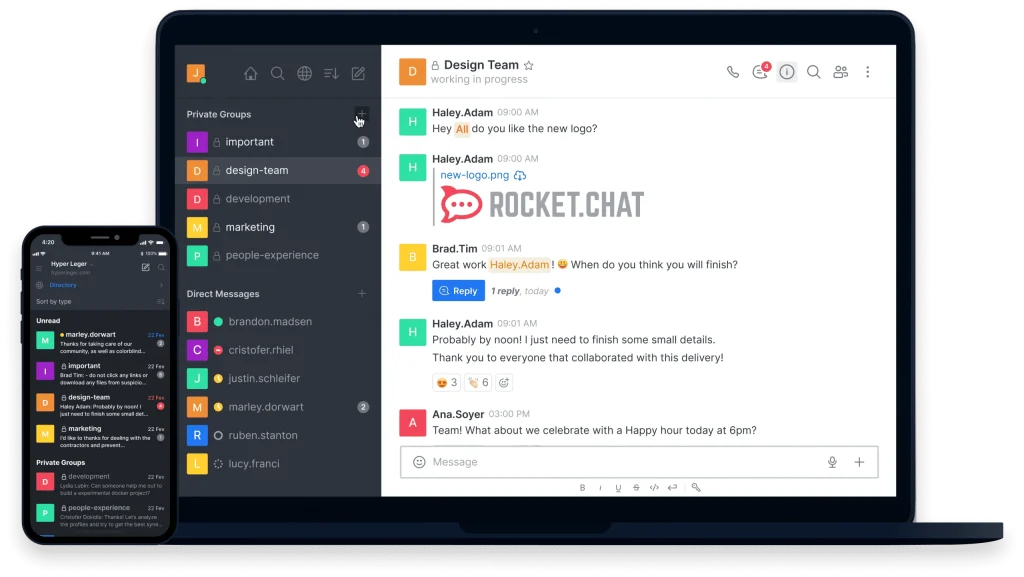
Congratulations on setting up Rocket.Chat on your Ubuntu 24.04 system! By following this guide, you’ve laid a solid foundation for efficient and secure team communication. With the basics configured, you’re ready to explore the extensive features Rocket.Chat has to offer.
Next, consider delving into the customization options. Tweak user roles, channel settings, and appearance to ensure the platform aligns perfectly with your organization’s identity and workflow. Additionally, explore integrating third-party tools and bots to enhance functionality further.
Keep your Rocket.Chat instance healthy by routinely checking for updates and applying them as needed. Staying up-to-date helps maintain security and ensures you benefit from the latest features.
Finally, engage your team by encouraging feedback. Their insights can guide further tweaks and improvements, helping you tailor the platform to your unique needs. With your Rocket.Chat deployment in place, you’re poised to boost collaboration and streamline communication across your team. Happy chatting!