Keeping an eye on your network’s performance doesn’t have to be a headache. Observium, an intuitive and robust network monitoring platform, offers a user-friendly interface combined with powerful data visualization capabilities. With its automatic discovery feature and support for a wide range of devices, it’s a top choice for both small businesses and large enterprises alike.
In this guide, we’re diving into the installation and configuration of Observium on Ubuntu 24.04, the latest iteration of this ever-popular Linux distribution. Whether you’re new to server management or a seasoned pro, following along will have your network monitored in no time.
So, grab your terminal, and let’s get started on setting up a seamless monitoring experience with Observium!
Installing Observium Dependencies
Before diving into installing Observium, it’s crucial to get the groundwork right by handling some prerequisites. Ensuring your system is up-to-date and has all necessary libraries will streamline the process and prevent any hiccups along the way.
Update System Packages
Start by updating your system’s package list to ensure you’re fetching the latest versions of everything. Open your terminal and run the following commands:
sudo apt update sudo apt upgrade -y
This will update the package list and upgrade all packages to the newest version, keeping your system fresh and ready.
Install Required Libraries
Observium relies on several libraries and tools for optimal performance. Here’s a quick list of what needs to be installed. Run:
sudo apt install -y snmpd snmp mariadb-server mariadb-client php8.2-cli php8.2-mysql php8.2-gd php8.2-mbstring php8.2-xml php8.2-posix php8.2-bcmath rrdtool fping git
These packages include MySQL, PHP extensions, and other network management tools essential for Observium. By installing these, you’re setting up a robust foundation for Observium to operate smoothly.
With the system prepped, you’re now all set to move on to the Observium installation itself. The groundwork is complete—let’s keep the momentum going!
Downloading Observium Package
Now that your system is ready, it’s time to grab the Observium package. This involves downloading the latest version directly from Observium’s website. Doing this ensures that you’re equipped with all the newest features and security updates.
Obtain the Latest Observium Release
To get started, navigate to your preferred directory where you want Observium to be installed. Use the following command to download the latest Community Edition:
cd /opt sudo wget http://www.observium.org/observium-community-latest.tar.gz
Once the download completes, extract the contents of the tarball to set up Observium’s directory structure:
sudo tar zxvf observium-community-latest.tar.gz
This will create a new folder called observium in /opt, containing all the files necessary to get Observium up and running.
By obtaining the most recent release, you’re ensuring that your network monitoring setup is future-proof and ready to handle the demands of your system. With everything downloaded and organized, you’re one step closer to having a fully-operational Observium setup!
Setting Up MySQL Database
With Observium downloaded and your system prepped, it’s time to set up the MySQL database that will store all of your network data. This involves configuring MySQL and creating a database specifically for Observium to use.
Configure MySQL for Observium
First, secure your MySQL installation, which is a great practice to protect your data. Run the command:
sudo mysql_secure_installation
Follow the prompts to set a root password and remove any unnecessary features. With security in place, open the MySQL command line interface with:
sudo mysql -u root -p
Enter your root password when prompted, and you’re ready to begin configuring your Observium database.
Create Observium Database and User
Once inside the MySQL shell, it’s time to create the database and user for Observium. Execute the following commands:
CREATE DATABASE observium CHARACTER SET utf8 COLLATE utf8_general_ci;
CREATE USER 'observiumuser'@'localhost' IDENTIFIED BY 'securepassword';
GRANT ALL PRIVILEGES ON observium.* TO 'observiumuser'@'localhost';
FLUSH PRIVILEGES;
EXIT;
Replace ‘securepassword’ with a strong password of your choice. This setup ensures that Observium has its secure database environment, ready to handle your network data efficiently. With this foundation, Observium can now be configured to integrate seamlessly with your system.
Configure Observium
With Observium installed and dependencies sorted, it’s time to configure it to suit your network’s needs. This step involves tuning the configuration files and setting up scheduled tasks to ensure Observium runs like a well-oiled machine.
Modify Configuration Files
Navigate to the Observium directory to tweak the configuration file:
cd /opt/observium
sudo cp config.php.default config.php
sudo nano config.php
Inside config.php, update the database settings with the details you used earlier for the Observium database. Ensure you provide the username, password, and database name you created.
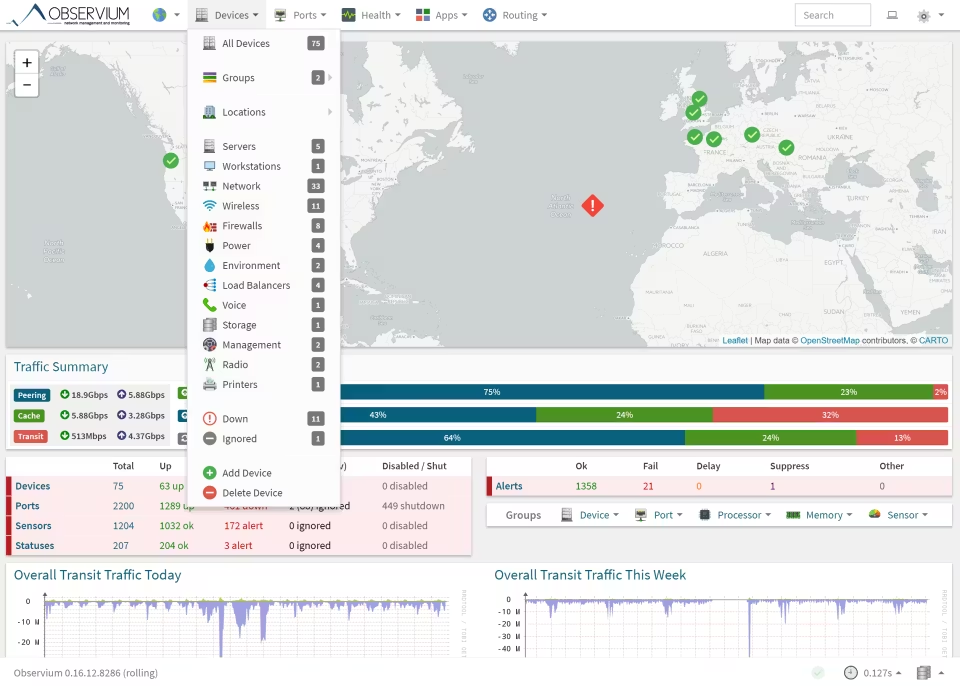
You can also fine-tune other settings in this file, such as alert settings and email configurations, to make sure Observium functions just how you like it. If you’re interested in setting up similar alerting and visualization features, you might find Grafana useful as well.
Set Up Cron Jobs for Observium
To keep Observium’s data up-to-date, you’ll need to set up some cron jobs. Cron jobs automate tasks, such as poller and discovery operations. Edit the system’s crontab with:
sudo nano /etc/cron.d/observium
Add the following lines to the file to ensure Observium runs regular updates:
*/5 * * * * root /opt/observium/discovery.php -h all >> /dev/null 2>&1
*/5 * * * * root /opt/observium/poller-wrapper.py 1 >> /dev/null 2>&1
These entries schedule Observium to discover and poll your network every five minutes, ensuring you have real-time access to network insights. With these configurations, Observium is well-equipped to handle your monitoring needs efficiently!
Conclusion
Congratulations! You’ve successfully installed and configured Observium on Ubuntu 24.04. With this robust monitoring tool at your fingertips, you can now effortlessly keep tabs on your network’s health and performance.
By setting up Observium, you’ve armed yourself with a powerful platform that offers both comprehensive asset management and precise monitoring capabilities. Its intuitive interface ensures that you’ll always have quick access to essential data.
Regularly updating your setup and exploring Observium’s features will keep you ahead of potential issues and help you make informed decisions about your network infrastructure.
Remember, a well-monitored network is a well-maintained network. Happy monitoring!