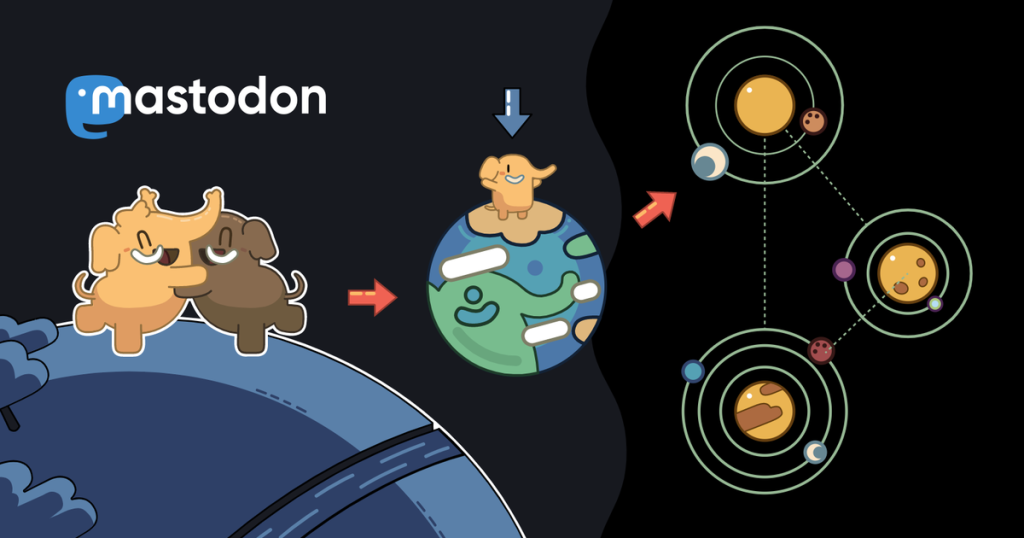
Mastodon is a powerful open-source social network platform that’s taking the world by storm, allowing users to connect with communities in a decentralized way. Imagine having full control over your own social networking space, creating a haven for like-minded individuals while fostering safety and inclusivity. Sounds good, right?
In this guide, we’ll walk you through installing and configuring a Mastodon server on Ubuntu 24.04. Whether you’re an Ubuntu pro or just dipping your toes into the Linux world, we’ll help you get your server up and ready. Each step is detailed and easy to follow, ensuring you won’t miss a thing.
By the end of this guide, you’ll be ready to launch your very own Mastodon community, equipped with all the tools you need for a smooth sailing experience. So, let’s roll up those sleeves and get started on creating your unique corner of the internet!
Requirements for Installing Mastodon Server on Ubuntu 24.04
Before diving into the installation process, it’s crucial to ensure your system meets the necessary requirements. Getting these details right will pave the way for a seamless setup of your Mastodon server. Let’s quickly go over what you need.
System Requirements
To host your Mastodon server effectively, you’ll need a machine that meets these basic specs:
- Operating System: Ubuntu 24.04 LTS
- RAM: Minimum of 4GB for a smooth experience
- Processor: Dual-core CPU
- Storage: At least 20GB available, though more is beneficial, especially for media-heavy instances
- Network: A stable internet connection with a static IP, plus appropriate domain name(s)
These specifications ensure your server can handle activity without hiccups or downtime.
Software Dependencies
With the hardware ready to go, let’s talk software. Several dependencies are essential for Mastodon to run smoothly:
- PostgreSQL: For database management, recommended version 14 or later
- Redis: As a caching solution and background job handler
- Ruby: Version 3.2.x for application logic
- Node.js: Minimum version 18.x for assets compilation
- Nginx: To act as a reverse proxy and handle secure connections with SSL
Having these software dependencies up to date is key to ensuring your Mastodon server runs without a hitch. Now that you’re equipped with the necessary information, you’re all set to move on to the installation steps!
Step-by-Step Guide to Installing Mastodon on Ubuntu 24.04
Embarking on the installation journey? Fantastic! With your machine prepped, let’s dive right into setting up your Mastodon server. We’ll break it down into manageable steps to keep things straightforward and stress-free.
Setting Up the Environment
First up is preparing your server environment, which is crucial for a smooth installation process. Start by updating your system packages:
sudo apt update && sudo apt upgrade -yNext, install the necessary system tools:
sudo apt install curl wget git -yYou’ll also need to add the official Node.js and Yarn repositories:
curl -sL https://deb.nodesource.com/setup_18.x | sudo -E bash -

sudo apt update && sudo apt install nodejs -y
Then, get Yarn for package management:
npm install --global yarnGreat! Now you have the basic environment ready. Next, you’ll need to install PostgreSQL and Redis:
sudo apt install postgresql postgresql-contrib redis-server -yDon’t forget to start and enable these services to run at boot:
sudo systemctl enable postgresql redis-serverDownloading and Configuring Mastodon
With the environment ready, it’s time to get the Mastodon codebase and configure it. Clone the Mastodon repository:
git clone https://github.com/mastodon/mastodon.git ~/mastodon

cd ~/mastodon
Checkout the stable branch for production use:
git checkout $(git describe --tags $(git rev-list --tags --max-count=1))Next, install Ruby gems to handle dependencies. Make sure you have Ruby 3.2.x installed:
gem install bundler

bundle install -j$(getconf _NPROCESSORS_ONLN)
Finally, install JavaScript dependencies:
yarn installCongratulations! You’ve laid down the foundation for your Mastodon server. In the next steps, you’ll focus on the configuration specifics to suit your needs and get your server live and kicking. Keep up the momentum, you’re almost there!
Configuring Mastodon Server Settings
With Mastodon downloaded and dependencies installed, it’s time to configure the server settings for your new social network. This includes adjusting configuration files and setting up your domain to ensure everything runs like a breeze.
Adjusting Configuration Files
Start by generating the necessary configuration files. Mastodon simplifies this with a setup script:
RAILS_ENV=production bundle exec rake mastodon:setupFollow the prompts for database setup, enabling features, and defining your admin credentials. Remember, choosing sensible defaults will save setup time, but feel free to customize as needed.
Next, tweak your .env.production file for specific settings. Open it with a text editor and adjust the settings to match your server setup:
nano .env.productionPay particular attention to:
- LOCAL_DOMAIN: Set this to your domain name
- SMTP_SERVER: Ensure it points to your email provider
- DB settings: Confirm they match your PostgreSQL setup
Writing down these settings will be invaluable for troubleshooting later.
Setting Up Domain and SSL
Your server can’t reach the world without proper domain and SSL configurations. First, make sure your domain’s DNS settings point to your server’s IP address.
Install and configure Nginx to handle HTTPS requests:
sudo apt install nginx -yCreate a configuration file for your Mastodon instance in the /etc/nginx/sites-available/ directory. Include proxy and SSL settings. Here’s a basic template to get you started:
server {

    listen 80;

    server_name yourdomain.com;

    location / {

        proxy_pass http://localhost:3000;

        proxy_set_header Host $host;

    }

}
Obtain an SSL certificate using Let’s Encrypt to encrypt data traveling to and from your server, adding a layer of security:
sudo snap install --classic certbot

sudo ln -s /snap/bin/certbot /usr/bin/certbot

sudo certbot --nginx -d yourdomain.com
With the domain set and SSL configured, you’re nearly at the finish line. Now, restart Nginx to apply changes:
sudo systemctl restart nginxYour Mastodon server is now configured and secured, ready to welcome your first users. Keep the communication lines open and watch your community grow!
Maintaining and Updating Your Mastodon Server
Congratulations! Your Mastodon server is now live and ready to welcome new users. However, the journey doesn’t stop at installation. Regular maintenance is key to ensuring your server runs smoothly and securely. Let’s go over the essentials of keeping your Mastodon instance in top shape.
Regular Backups and Security Checks
Backing up your data should be a top priority. Regular backups ensure you can recover from unexpected issues with minimal data loss. Set a schedule to back up your Mastodon database and media files. You can automate this using cron jobs for efficiency.
To back up your PostgreSQL database, you might use:
pg_dump -Fc mastodon_production > ~/backups/$(date +%F).dumpEnsure your media directory is also part of your backup process:
rsync -av --progress /path/to/mastodon/public/system/ /path/to/backup/directory/Security is another crucial aspect. Regularly check for and install updates for your server’s OS and Mastodon software. Ubuntu’s update process makes it easy with:
sudo apt update && sudo apt upgrade -ySimilarly, be sure to pull the latest Mastodon updates from the repository. Every update can patch vulnerabilities and add new features:
cd ~/mastodon

git pull

RAILS_ENV=production bundle exec rake db:migrate

RAILS_ENV=production yarn install

RAILS_ENV=production bundle exec rails assets:precompile
And remember, using a monitoring service can keep you informed of unusual activity, further safeguarding your server and community.
By staying proactive with backups and updates, you’ll ensure your Mastodon server runs smoothly, letting you focus on building your community. Now, sit back and watch your vibrant social space thrive!
Conclusion: Successfully Managing Your Mastodon Instance
You’ve made it to the end of your Mastodon server journey, and what a ride it’s been! From initial setup and configuration to maintaining and securing your server, you’ve gained the skills to effectively manage your very own corner of the fediverse.
Operating a Mastodon server is more than just software; it’s about fostering a thriving community that shares your values and passions. Regular maintenance and updates are essential, but that’s just the backend. The real magic happens as you engage with users, facilitate discussions, and watch your community grow.
As you continue managing your instance, remember to keep communication open, listen to your users, and evolve alongside the ever-changing landscape of open-source social networking. Your role is not just as an admin, but as a community leader guiding meaningful interactions.
Thank you for taking this Mastodon journey! Keep exploring, sharing, and connecting. The fediverse is yours to shape and enjoy. Welcome to a new way of social networking that celebrates freedom, privacy, and community. Here’s to many successful interactions on your Mastodon server!