Meet Mailpit, a versatile tool that’s about to become your best friend for managing email delivery and testing without sending out real messages to users. Whether you’re a developer or a tester, Mailpit offers a seamless solution for simulating, capturing, and analyzing outgoing emails in a safe sandbox.
With AlmaLinux 9 being renowned for its stability and compatibility, it’s the perfect platform for this powerful setup. In a few straightforward steps, you can install and configure Mailpit, allowing you to streamline your workflow, locate email issues before they reach the wild, and ensure your communications are flawless.
In this guide, we’ll lead you through each step of the installation and configuration process, ensuring you have a clear understanding of how to set up Mailpit from scratch. Let’s dive in and supercharge your email testing game today!
Installing Prerequisites on AlmaLinux 9
To kick-start your journey with Mailpit on AlmaLinux 9, we first need to ensure your system meets all the necessary requirements and has the right packages. Taking care of these basics will pave the way for a smooth installation process.
System Requirements
Before diving into the installation, let’s ensure your system is well-prepared. Mailpit doesn’t demand much, but confirming these requirements can save you from future hiccups:
- Operating System: AlmaLinux 9 (fully updated).
- User Permissions: Root or sudo privileges.
- Network Access: Internet connection to fetch packages.
Required Packages
With the system ready, it’s time to grab the required packages. These essentials form the backbone of your Mailpit setup:
EPEL Repository: First, enable the EPEL repository, which hosts additional packages for Enterprise Linux:
sudo dnf install epel-release
Development Tools: Next, ensure you have the necessary development tools and libraries:
sudo dnf groupinstall "Development Tools"
Once you have these prerequisites in place, you’re all set to move on to the installation of Mailpit itself. These steps are your first stride toward a robust email testing environment on AlmaLinux 9!
Downloading and Installing Mailpit
Now that your AlmaLinux 9 system is primed and ready, let’s move on to the exciting part—getting Mailpit up and running!
Obtain the Mailpit Package
First things first, you need to download the Mailpit package. Head to the official Mailpit GitHub page or website, where you’ll find the most recent release ready for download. You can do this directly via a wget command or by downloading it through your browser if you prefer.
Navigate to your terminal and enter:
wget https://github.com/your-repo/mailpit/releases/download/latest/mailpit.tar.gz
Once downloaded, extract the package using the tar command:
tar -xzf mailpit.tar.gz
Now, you’ll have all the files you need to proceed.
Verifying Installation
After extracting the package, it’s important to ensure everything is where it should be. Run the following command to check if Mailpit is properly installed and can be executed:
./mailpit --version
Seeing the version info confirm that it’s installed correctly! This quick verification step helps ensure that Mailpit is ready to work its magic on your system.
With that sorted, Mailpit is now ready to assist you with effective email testing. Let’s keep moving forward!
Configuring Mailpit for Use
Now that Mailpit is installed on your AlmaLinux 9 system, it’s time to configure it to suit your needs. Configuration is key to ensuring Mailpit effectively captures and manages your test emails.
Configuration File Overview
Mailpit’s configuration is straightforward, primarily managed through a single configuration file. By default, you’ll find this file in the directory where you’ve installed Mailpit.
Open the configuration file with your favorite text editor:
nano /path/to/mailpit/config.yaml
In this file, you can define critical settings, such as the listening ports and the interface. It’s the central hub where you can tailor Mailpit to your specific requirements.
Make sure to back up this file before making changes, so you can easily revert if needed.
Setting Up Mail Accounts
To begin using Mailpit, you’ll need to set up mail accounts that Mailpit will monitor. These accounts don’t require real email addresses, as they’re just for testing.
Within the configuration file, specify the test accounts like this:
accounts: - email: test@example.com username: testuser password: testpass
You can add multiple accounts if needed, ensuring you have ample flexibility in your testing scenarios. Save and close the file once you’re done.
With Mailpit configured and your test accounts set up, you’re now ready to start capturing and analyzing emails effortlessly!
Testing Mailpit Installation
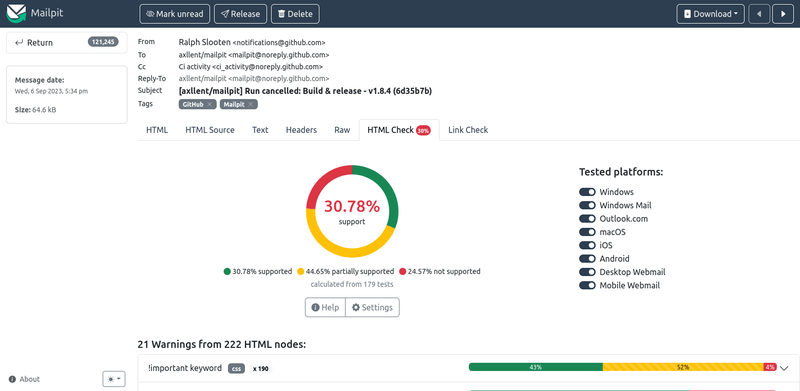
Once Mailpit is installed and configured, it’s time to ensure everything is running smoothly. Testing the setup confirms that Mailpit is capturing and displaying emails as expected.
Sending Test Email
To verify the installation, start by sending a test email through any SMTP client or script configured to use Mailpit’s SMTP server settings. For instance, if you’re using a script, make sure the SMTP host and port match the ones defined in your Mailpit configuration.
Here’s a quick command using Telnet as an example:
telnet localhost 1025
Use this to compose a test message. Once sent, head over to Mailpit’s web interface, typically at http://localhost:8025, to see your test email listed. If it appears, congrats—Mailpit is functioning perfectly!
Troubleshooting Common Issues
If your test email doesn’t show up, don’t worry. Start troubleshooting by checking the Mailpit logs, which can provide insight into any hiccups during the email processing.
Ensure that the configuration settings match between your SMTP client and Mailpit, and double-check network configurations to ensure connections aren’t being blocked by firewalls.
If you’re interested in setting up a comprehensive mail server suite for more advanced scenarios, you might want to explore Mailcow on AlmaLinux 9 for full-featured mail management and testing.
With these steps, you should be able to pinpoint and resolve any issues swiftly, ensuring that Mailpit becomes a valuable tool in your email testing arsenal.
Conclusion and Best Practices
Congratulations on setting up Mailpit on your AlmaLinux 9 system! By following these steps, you now have a powerful tool to capture and test emails, ensuring smooth and bug-free communication in your projects.
As you continue using Mailpit, here are a few best practices to keep in mind:
- Regularly Update: Stay on top of updates for both AlmaLinux and Mailpit. New releases often include security patches and new features that can enhance functionality and security.
- Backup Configurations: Maintain backups of your configuration files, especially when making changes. This will save you time and effort if you need to revert to a previous setup.
- Monitor Performance: Keep an eye on system performance and Mailpit logs. Identify any patterns that might indicate issues and address them proactively.
- Documentation Review: Familiarize yourself with Mailpit’s documentation and community resources. These can be invaluable for troubleshooting and discovering new ways to leverage the tool. If you’re interested in hosting or managing analytics solutions, you might check out Umami on Ubuntu for privacy-focused web analytics.
By embedding these best practices into your routine, you’ll ensure a reliable and effective email testing environment that can adapt to your evolving needs. Happy testing!