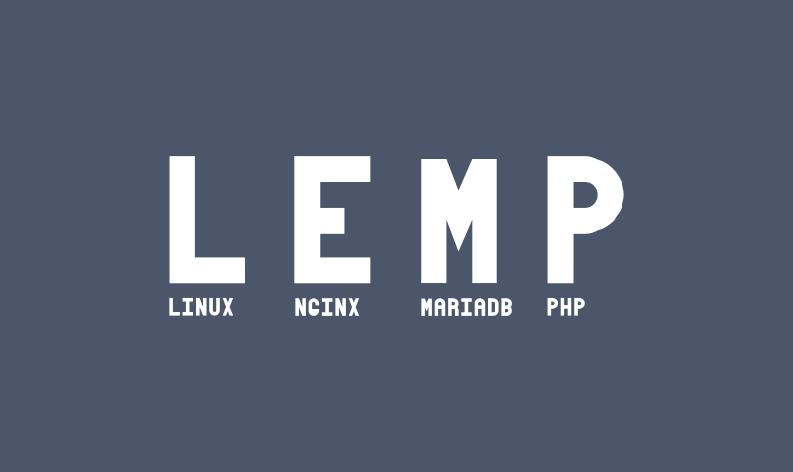
Looking to unleash the full potential of your server with blazing fast speeds? The LEMP stack is your knight in shining armor. Comprising Linux, Nginx, MySQL (or MariaDB), and PHP, the LEMP stack is a powerhouse for delivering dynamic web content.
In this guide, we’ll stroll through the steps to get LEMP up and running on AlmaLinux 10, a popular choice for those who love stability and security. Whether you’re crafting a personal blog, a complex web application, or something in-between, a LEMP setup ensures you have a solid, reliable foundation.
From setting up each component to fine-tuning configurations, we’ll empower you to turn your server into a robust platform ready to tackle any web project you throw its way. Ready to transform AlmaLinux 10 into a high-performing web server? Let’s dive in!
Installing LEMP on AlmaLinux 10
So, you’re ready to install the LEMP stack? Awesome choice! In this section, we’ll lay the groundwork and kick off the installation process. Let’s get those gears turning.
Preparing Your System
Before diving into installations, ensure your AlmaLinux 10 system is up-to-date. Run the following command:
sudo dnf updateThis will fetch the newest releases of all installed packages, keeping your system secure and efficient. While you’re there, let’s also install epel-release to access more packages:
sudo dnf install epel-releaseOnce the updates and installations are complete, you’re set to start installing the components of the LEMP stack. Let’s get Nginx, the efficient web server that’ll handle your web requests like a pro.
Download and Install Nginx
Nginx is known for its performance and low resource consumption, making it a top pick for handling demanding applications. Begin by installing it with:
sudo dnf install nginxAfter the installation is complete, fire it up and enable it to start on boot:
sudo systemctl start nginx
sudo systemctl enable nginx
Confirm Nginx is running by visiting your server’s IP address in a web browser. A welcome page means you’re on track! Onward to adding more power with other LEMP components.
Configuring MySQL for LEMP Stack
With Nginx serving up requests, it’s time to store data seamlessly using MySQL. This trusted database management system works behind the scenes to house all your web application data.
Setting Up MySQL Database
Start by installing MySQL with the command:
sudo dnf install mysql-serverOnce installed, let’s kickstart it and ensure it powers up with your server:
sudo systemctl start mysqld
sudo systemctl enable mysqld
To dive into MySQL, run:
sudo mysqlHere, you can create your database. For instance, create a database called my_database with:
CREATE DATABASE my_database;Voilà! Your database is ready to store information.
Securing MySQL Installation
Safety first! Let’s lock down your MySQL installation to keep data secure. Execute the built-in security script:
sudo mysql_secure_installationFollow the prompts to set a root password and disable remote root login. Remove test databases by saying ‘yes’ when asked, and reload privilege tables.
Rest assured, this setup enhances your database’s security right from the get-go. With MySQL configured, your LEMP stack is shaping up nicely for any web application needs.
Setting Up PHP on AlmaLinux 10
With Nginx and MySQL in place, it’s time to integrate PHP, the scripting language that makes your websites truly dynamic. Let’s get it set up on AlmaLinux 10.
Installing PHP and Modules
PHP forms the backbone of numerous web applications, so installing the right version and necessary modules is key. Start by installing PHP along with some common extensions:
sudo dnf install php php-fpm php-mysqlndFeel free to add other PHP modules based on your application’s needs, such as php-json or php-xml. This ensures you have all the tools to handle data formats and interact with MySQL seamlessly.
Verifying PHP Configuration
Once installed, it’s crucial to ensure PHP is configured correctly. Begin by starting and enabling PHP-FPM:
sudo systemctl start php-fpm
sudo systemctl enable php-fpm
Then, create a simple PHP info file to verify that PHP is working with Nginx. Place this in the web root directory, usually /usr/share/nginx/html/:
echo "" | sudo tee /usr/share/nginx/html/info.phpVisit http://your-server-ip/info.php to check the PHP installation details. If it displays correctly, PHP is set up and ready to add interactivity to your web applications.
With PHP configured on AlmaLinux 10, you’re well on your way to harnessing the powerful trio of the LEMP stack!
Configuring Nginx for LEMP
With Nginx successfully installed, let’s tailor it to serve our web projects optimally. Configuration is key to ensuring it runs smoothly and efficiently in your LEMP stack.
Creating Nginx Server Block
Server blocks in Nginx allow you to host multiple domains on a single server. They’re akin to virtual hosts in Apache. Start by creating a new server block file in the /etc/nginx/conf.d/ directory:
sudo nano /etc/nginx/conf.d/example.com.confAdd the following basic configuration, replacing example.com with your domain name:
server {
    listen 80;
    server_name example.com www.example.com;

    root /usr/share/nginx/html/example.com;
    index index.php index.html index.htm;

    location / {
        try_files $uri $uri/ =404;
    }

    location ~ .php$ {
        include snippets/fastcgi-php.conf;
        fastcgi_pass unix:/var/run/php-fpm/www.sock;
    }
}
Make sure the root directory exists for your domain.
Test Nginx Configuration
Before going live, it’s smart to check the configuration for errors. Run:
sudo nginx -tIf everything checks out, reload Nginx to apply the changes:
sudo systemctl reload nginxNow your server block setup is ready to handle incoming requests with finesse!
Conclusion
Congratulations! You’ve successfully set up and configured a LEMP stack on AlmaLinux 10. By combining the prowess of Nginx, the robustness of MySQL, and the versatility of PHP, your server is now more than ready to host dynamic content with efficiency and speed.
This foundation opens doors to countless possibilities, whether you’re aiming to deploy small web projects or manage larger applications. Optimizing each component will further enhance performance and security, making sure your server meets your specific needs.
Stay curious, keep exploring, and don’t hesitate to tinker with configurations to suit your unique requirements. Enjoy the power and flexibility of your new LEMP stack on AlmaLinux 10!