In the ever-evolving world of email management, having a robust, secure, and open-source email server is invaluable. Enter iRedMail, a comprehensive solution that transforms your Ubuntu 24.04 system into a full-fledged mail server.
Built with security and simplicity in mind, iRedMail lets you manage your emails with minimal hassle. Whether you’re handling personal email or managing a business-level demand, the ease of configuration and powerful features of iRedMail make it a top choice.
This guide will walk you through the installation and configuration process of iRedMail on Ubuntu 24.04. Whether you’re a seasoned Linux user or a curious newbie, by the end of this tutorial, you’ll have a fully functional email server, equipped and ready to handle your communication needs.
So, grab a cup of coffee, settle into your favorite chair, and let’s embark on this journey to mastering email server setup with iRedMail!
Installing iRedMail on Ubuntu 24.04
Preparing Your Ubuntu Server
Before diving into the iRedMail installation, let’s ensure your Ubuntu 24.04 server is ready for action. Start by updating your system packages to their latest versions. Run these simple commands in your terminal:
sudo apt update
sudo apt upgrade
Next, make sure that your server has a static IP address and a fully qualified domain name (FQDN) set up. This setup is crucial for your mail server to function correctly. Don’t forget to configure your DNS settings to match your FQDN.
Additionally, ensure that your server’s firewall is configured to allow essential ports. Typically, iRedMail will need access to ports 25, 587, 993, and 995.
Downloading iRedMail
With your server primed and ready, it’s time to download iRedMail. Head over to the official iRedMail website and grab the latest version available for Ubuntu.
Alternatively, download it directly to your server via the terminal:
wget https://github.com/iredmail/iRedMail/archive/refs/tags/1.0.tar.gzOnce downloaded, extract the archive with:
tar xzf 1.0.tar.gzThis will prepare the installation files you need to move forward. It’s a simple process, but each step gets you closer to configuring a robust email server.
Configuring iRedMail Wizard
Choosing the Mail Server Domain
Once you’ve extracted the iRedMail package, it’s time to run the installation wizard. The wizard is user-friendly and guides you through critical setup choices.
First on your list is selecting the domain that will serve as your mail server’s identity. Make sure it’s the FQDN you configured earlier. This step is essential because it defines how your server interacts with the world. Double-check your DNS records to ensure everything aligns perfectly before moving forward.
Setting Up Mail Server Components
Next, you’ll get to select the specific components to include in your mail server. iRedMail comes packed with a suite of options such as Postfix for sending mail, Dovecot for handling incoming mail, and OpenLDAP or MySQL for managing users.
Choose the components that best fit your needs. For most users, sticking with the default selections strikes the right balance between functionality and simplicity. However, feel free to customize based on your specific requirements.
With these settings locked in, you’re well on your way to building a powerful and efficient mail server!
Securing Your iRedMail Installation
Implementing SSL/TLS Encryption
Now that your iRedMail server is up and running, it’s crucial to ensure your emails are sent and received securely. Implementing SSL/TLS encryption is a must for safeguarding your communication.
You have a couple of options: use a self-signed certificate or obtain a trusted one from a Certificate Authority (CA). For optimal security, a CA-signed certificate is recommended.
To configure SSL/TLS, navigate to your iRedMail installation directory. Update your server’s configuration files to point to your SSL certificate and key files. This change ensures your emails remain private and secure during transmission.
Configuring Firewall Rules
With encryption in place, let’s fortify your server’s defenses further by setting up proper firewall rules. This step will prevent unauthorized access while allowing necessary traffic.
Begin by enabling the UFW firewall if it isn’t already:
sudo ufw enableAllow essential email ports:
sudo ufw allow 25
sudo ufw allow 587
sudo ufw allow 993
sudo ufw allow 995
Make sure to reload UFW with:
sudo ufw reloadBy configuring these rules, you protect your server from unwanted intrusions, keeping your email system secure and efficient.
Testing Your iRedMail Setup
Sending Test Emails
Once iRedMail is up and running, it’s time to ensure everything is working smoothly by sending some test emails. Begin by logging into your webmail client, often Roundcube, which comes bundled with iRedMail. Use your newly created email accounts to send a few test emails to both internal and external addresses.
Check the inboxes of these accounts to confirm delivery. If emails aren’t showing up, double-check your server configuration, paying close attention to domain settings and firewall rules. This testing phase is critical to catch any setup hiccups early on.
Reviewing Mail Server Logs
Another important step in verifying your setup is checking the mail server logs. Logs are your best friend for troubleshooting and confirming successful operations. Navigate to the log directory, usually found under /var/log/, and explore files like mail.log or dovecot.log.
Look for any error messages or unusual entries that could indicate a problem. Successful log entries often contain status codes like “250” for successful delivery. By reviewing these logs, you ensure your server is operating correctly and securely.
Conclusion: Successfully Managing Your Mail Server
Congratulations on setting up your mail server with iRedMail on Ubuntu 24.04! Navigating through the installation and configuration might have seemed challenging at first, but you did it.
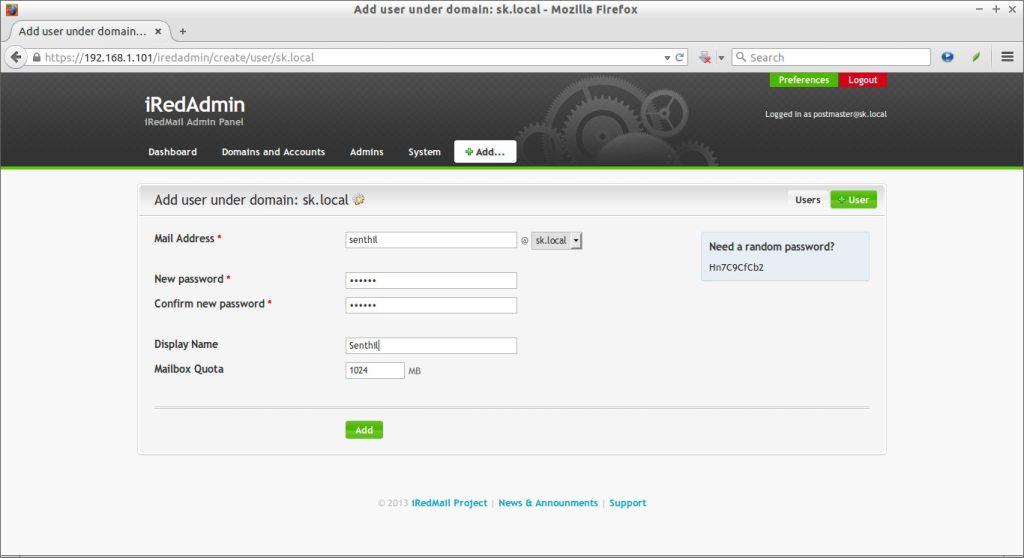
Having a personalized email solution not only empowers you with full control over your email services but also enhances security and privacy. Now, you’re equipped to handle user management, secure communications, and troubleshoot issues through server logs efficiently.
As you continue to manage your server, be sure to regularly update your system and iRedMail components to keep security threats at bay. Also, explore additional features within iRedMail, such as mailing lists and domain management, to expand your server’s capabilities.
By mastering these skills, you’ve taken a significant step in managing your digital communications. Enjoy the newfound freedom and reliability that comes with running your very own email server!