Are you ready to transform your data into beautiful, insightful dashboards? Grafana is a powerful open-source platform that makes it easy to visualize and analyze massive amounts of information. Whether you’re monitoring application performance or system health, Grafana lets you gain insights at a glance.
Installing Grafana on Debian 13 is straightforward, even for beginners. In just a few steps, you’ll be ready to configure it for your unique needs.
In this guide, we’ll walk you through the entire process—from installation to configuration—ensuring you have a fully functional Grafana setup on your Debian 13 system. Let’s dive in and unlock the full potential of your data!
Installing Grafana on Debian 13
Jumping into Grafana installation on Debian 13 is a breeze! Before we start, let’s make sure you have everything in place to enjoy a seamless setup. This process isn’t just about getting something installed; it’s about laying the groundwork for an incredible data visualization journey.
System Requirements
First off, let’s talk about what you need to get started. Ensuring your system is properly prepared guarantees that Grafana runs smoothly. Debian 13, of course, is a given. Also, ensure your server has stable internet connectivity for downloading packages and updates. A modern multi-core processor and at least 512MB of RAM will be adequate for most basic setups, although more may be required for handling extensive data sets.
Downloading Grafana
With requirements checked off, it’s time to download Grafana. Head over to the official Grafana website or use the package manager directly from your terminal. Open your terminal and start by updating your package lists with sudo apt update.
To get Grafana, add the official Grafana APT repository. Run the following commands:
sudo add-apt-repository "deb https://packages.grafana.com/oss/deb stable main"
sudo apt install grafana
With Grafana downloaded, you’re well on your way to visual data magic! Next, let’s move on to configuring this dynamic tool.
Setting Up the Grafana Repository
To get Grafana onto your Debian 13 system, we need to tap into Grafana’s package repository. This makes sure you’re downloading the official, up-to-date version of Grafana, keeping your installation secure and current.
Open up your terminal and let’s start by adding the repository. Execute the following command to include the Grafana APT repository:
sudo add-apt-repository "deb https://packages.grafana.com/oss/deb stable main"This step does more than just download; it ensures your system knows exactly where to find the Grafana packages for installation.
Adding the Grafana GPG Key
Before diving into installing Grafana, you need to add its GPG key. This key acts like a digital signature, verifying the authenticity of the software you’re downloading.
To add the GPG key, input the following command:
wget -q -O - https://packages.grafana.com/gpg.key | sudo apt-key add -This command fetches the key from Grafana’s site and seamlessly adds it to your keyring, keeping your installation process trustworthy and secure. Now you’re all set to install Grafana without any hitches!
Installing Grafana via APT
Now that your system is all set with the Grafana repository, let’s move on to the installation process using APT, Debian’s trusty package manager. This approach ensures you get the most stable, official release directly from Grafana’s servers.
Updating Package List
Before installing Grafana, it’s a good idea to refresh your system’s package list. This step ensures you have the latest information about the Grafana packages available for installation.
Open your terminal and simply run:
sudo apt updateThis command synchronizes your package index files with their sources, ensuring that any updates or new packages available are reflected in your local system registry. After this quick update, you’re primed to proceed with installing Grafana!
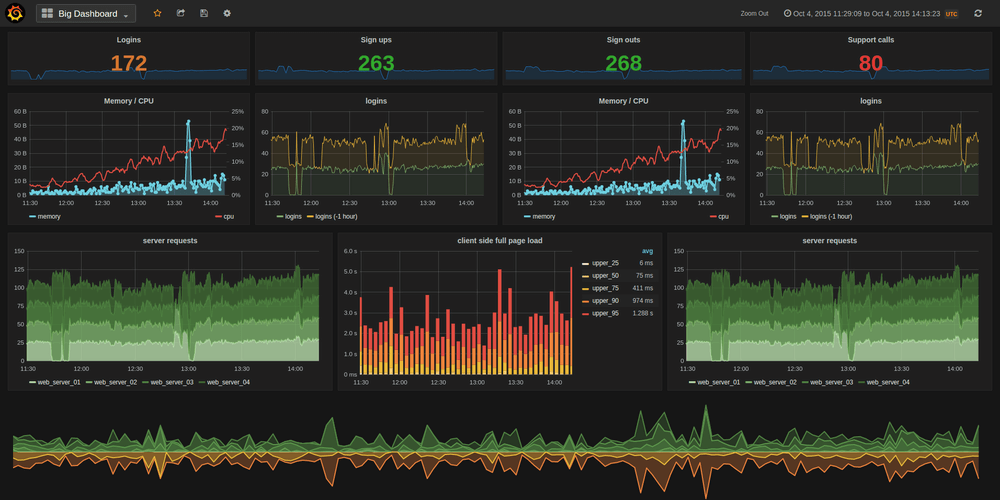
Configuring Grafana
With Grafana successfully installed, it’s time to tweak it to suit your needs. Configuration is where you can customize settings to match your environment and preference, tailoring Grafana’s capabilities to fit like a glove.
Editing Configuration Files
The heart of Grafana’s configuration resides in a file called grafana.ini. You can find it in the /etc/grafana/ directory. This file allows you to modify a wide range of settings, from server configurations to database connections.
To edit, open the file with your favorite text editor. Use:
sudo nano /etc/grafana/grafana.iniWithin this file, you can customize everything from the default port to enabling authentication options. Take your time here, and remember to save your changes before exiting the editor.
Starting Grafana Service
Once you’ve got everything configured, it’s time to kick off the Grafana service and bring your setup to life. Start the Grafana server with the following command:
sudo systemctl start grafana-serverTo ensure Grafana starts at boot, enable it:
sudo systemctl enable grafana-serverCongratulations! Your Grafana service is now up and running, ready to provide insightful dashboards and visualizations.
Conclusion
And there you have it! You’ve successfully installed and configured Grafana on Debian 13. With your new setup, you’re fully equipped to dive into creating dynamic dashboards and gaining valuable insights from your data.
Grafana’s flexibility and powerful visualization capabilities make it an indispensable tool for any data lover. Remember, the journey with Grafana doesn’t end here. Explore its extensive features and plugins to tailor the experience to your needs.
Keep experimenting, and continue unlocking the stories your data holds. Happy visualizing!