
Navigating databases can be daunting without the right tools. Fortunately, PhpMyAdmin makes managing your MySQL databases straightforward, even for newcomers. Imagine transforming complex database tasks into an intuitive visual experience. Sounds great, right?
Ubuntu 24.04 offers a stable and secure environment, perfect for hosting and managing PhpMyAdmin. Whether you’re setting up a personal server or managing projects, learning to install and configure PhpMyAdmin on this version can significantly boost your productivity.
In this guide, you’ll walk through the seamless process of getting PhpMyAdmin up and running on Ubuntu 24.04. From installation to basic configuration, we’ve got you covered. By the end, you’ll be ready to handle your databases with confidence and ease.
Ready to dive into the world of simplified database management? Let’s get started!
Introduction to phpMyAdmin and Ubuntu 24.04
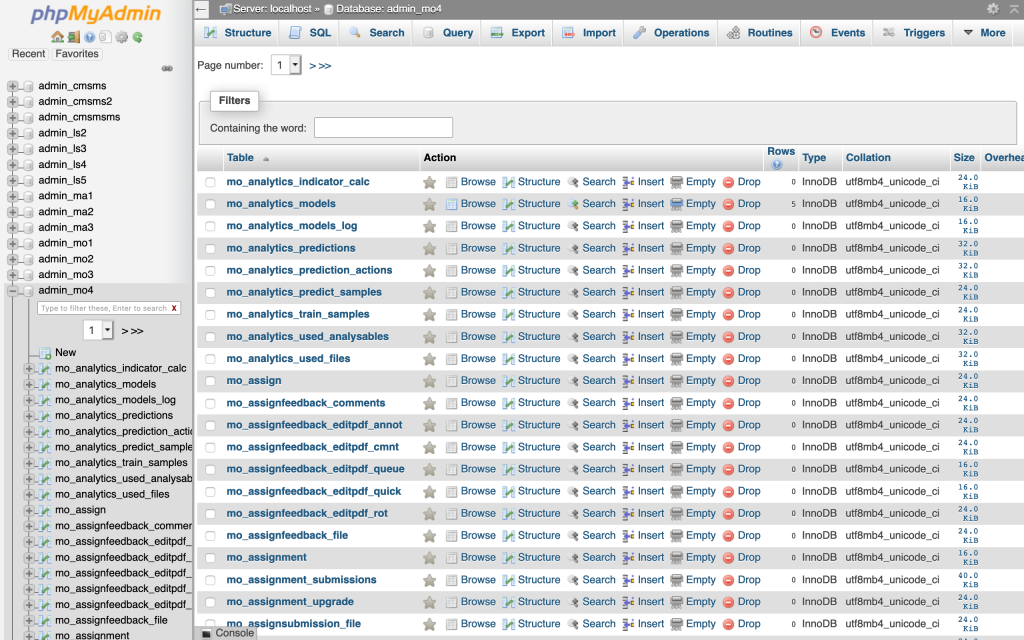
PhpMyAdmin is a free, open-source tool that provides a user-friendly interface for managing MySQL and MariaDB databases, ideal for developers and database administrators alike. With features like database management, user accounts, privileges, and execution of SQL statements, it simplifies complex tasks into interactive forms and dashboards.
Ubuntu 24.04 is the latest long-term support release, built for stability and performance. This iteration brings enhancements in security and functionality, making it a reliable choice for a server environment where you can confidently run PhpMyAdmin.
Integrating PhpMyAdmin with Ubuntu 24.04 merges a robust server operating system with a powerful database management tool. This pairing is perfect for those seeking efficiency and control, whether you’re managing a single database or juggling several in a multi-user environment.
In the sections ahead, we’ll explore how these tools work together to offer a seamless database experience. Let’s unlock the potential of your server setup with this dynamic duo!
Installing Required Software Packages
Before we dive into PhpMyAdmin, let’s ensure your system has all the essentials. First, update your server’s package list. This simple step ensures you’re grabbing the latest versions of everything.
sudo apt updateNext, install some necessary packages. These include wget, curl, and other helpful tools that support the installation and management of your web server and PHP components.
sudo apt install wget curl software-properties-commonWith these packages in place, your system is primed to handle everything that comes next!
Install Apache and PHP
Apache is the backbone of your web server, and installing it on Ubuntu is a breeze. Start by installing Apache with a single command:
sudo apt install apache2Once installed, ensure it’s running smoothly by checking its status:
sudo systemctl status apache2Next, let’s get PHP on board. Since PhpMyAdmin is run on PHP, you need to install it alongside some modules:
sudo apt install php libapache2-mod-php php-mysqlThis installation includes the essential PHP modules, ensuring compatibility with PhpMyAdmin.
Setting Up MySQL Database Server
With Apache and PHP ready, the next stop is MySQL. This database server acts as the foundation of your data management. Install MySQL using:
sudo apt install mysql-serverAfter installation, secure your MySQL setup by running the secure installation script. This step lets you set a root password and remove unnecessary defaults to tighten security:
sudo mysql_secure_installationWith these steps, your MySQL server is installed and secured. You’re now prepped to bring PhpMyAdmin into the mix!
Downloading and Installing phpMyAdmin
Now that you’ve got your server and database ready, it’s time to bring PhpMyAdmin into the mix. You’ll handle this in two main steps: downloading and configuring PhpMyAdmin.
Downloading from Official Source
Head over to the official PhpMyAdmin website to grab the latest release. Once there, find the download link for the version that best suits your setup. For most, the all-languages version is a safe bet.
Use wget on your server to fetch it directly:
wget https://www.phpmyadmin.net/downloads/phpMyAdmin-latest-all-languages.tar.gzOnce downloaded, extract the files to the web server’s root directory, typically /var/www/html:
tar xvf phpMyAdmin-latest-all-languages.tar.gz
sudo mv phpMyAdmin-*-all-languages /var/www/html/phpmyadmin
Your PhpMyAdmin files are now in place!
Configuring phpMyAdmin Installation
With the files ready, let’s configure PhpMyAdmin so it plays well with your system.
First, copy the sample configuration file:
cd /var/www/html/phpmyadmin
sudo cp config.sample.inc.php config.inc.php
Open the config file in your favorite text editor:
sudo nano config.inc.phpLocate the line with $cfg['blowfish_secret'], and assign it a strong, unique passphrase. This passphrase secures your cookies, so make it something difficult to guess!
Lastly, ensure the correct permissions are set:
sudo chown -R www-data:www-data /var/www/html/phpmyadminYou’re almost ready to manage your databases seamlessly with PhpMyAdmin!
Configuring phpMyAdmin for Secure Access
Now that PhpMyAdmin is installed and running, it’s crucial to ensure that access is secure. Proper configuration minimizes potential vulnerabilities and protects your data. Begin by making sure that you’re not exposing PhpMyAdmin’s interface unnecessarily over the internet. Adjust your server settings to restrict access to known IP addresses if possible.
Adjusting Firewall and Access Controls
Firewall configuration is critical for securing your PhpMyAdmin instance. If you’re using Ubuntu’s UFW (Uncomplicated Firewall), start by enabling it:
sudo ufw enableNext, allow traffic on HTTP (port 80) and, if secured with SSL, HTTPS (port 443):
sudo ufw allow 80/tcp
sudo ufw allow 443/tcp
To tighten security further, consider allowing PhpMyAdmin access only from specific IP addresses using server settings in Apache or directly in the firewall. This ensures only trusted networks can reach your admin interface.
Securing phpMyAdmin with Additional Settings
Beyond firewalls, PhpMyAdmin offers built-in configurations for enhanced security. Begin by disabling root login via PhpMyAdmin. Instead, create a dedicated administrator user with strong credentials specifically for accessing PhpMyAdmin.
Additionally, ensure SSL/TLS is enforced to encrypt data sent between your server and clients. You can do this by adjusting your Apache configuration to require secure connections when accessing PhpMyAdmin.
Finally, consider setting up two-factor authentication for an additional security layer. By implementing these measures, you’ll safeguard your PhpMyAdmin instance against unauthorized access and ensure data safety.
Conclusion
Congratulations, you’ve successfully set up and configured PhpMyAdmin on Ubuntu 24.04! With your newfound skills, managing MySQL databases has transformed from a complex task into something straightforward and intuitive.
You’ve learned how to install necessary software, secure your setup robustly, and ensure smooth operation on a stable server environment. Now, whether you’re managing data for personal projects or large-scale applications, you can handle it all with efficient ease.
Remember, the key to using PhpMyAdmin effectively is to keep your server secure and regularly update your software for the best experience. As you become more familiar with its capabilities, you’ll find that PhpMyAdmin is an invaluable tool in your development toolkit.
Thanks for following along, and happy database managing!




