
If you’re exploring ways to monitor your website’s traffic with precision and ease, Swetrix might be exactly what you need. Known for its privacy-focused approach, Swetrix offers a simple yet powerful analytics tool that respects user privacy while providing comprehensive insights.
This guide will walk you through the steps to install and configure Swetrix on AlmaLinux 9, a robust enterprise-ready operating system that’s perfect for servers. Whether you’re a seasoned admin or just dipping your toes into Linux, this tutorial will ensure you set up Swetrix smoothly.
Get ready to dive into installation strategies and configuration tips that enhance your web analytics capabilities while keeping your server setup streamlined and efficient. Let’s get started!
Installing Dependencies for Swetrix on AlmaLinux 9
Before diving into the Swetrix installation, it’s crucial to ensure that your AlmaLinux 9 environment is equipped with all necessary dependencies. This will pave the way for a smooth installation process.
Start by updating your system’s package manager to make sure you have the latest versions. Open your terminal and run:
sudo dnf update -yOnce your system is updated, you’ll need to install Node.js, as Swetrix relies on it to function. Use the following commands to add the NodeSource repository and install Node.js:
curl -sL https://rpm.nodesource.com/setup_16.x | sudo bash -
sudo dnf install -y nodejs
With Node.js in place, verify the installation by checking the version:
node -vNext, you’ll need Git, which is essential for cloning the Swetrix repository. Install Git with:
sudo dnf install -y gitFinally, make sure you have a compatible database system ready if Swetrix requires it for data storage. Now that your AlmaLinux 9 is prepared with the necessary software, you’re ready to proceed to the Swetrix installation!
Downloading the Swetrix Package
Once you’ve got all your dependencies squared away, it’s time to grab the Swetrix package itself. Head back to your terminal, and ensure you’re in a directory where you want to download Swetrix.
First, navigate to the desired directory:
cd /path/to/your/directoryNext, clone the Swetrix repository from GitHub. This will download all the files necessary to get Swetrix up and running:
git clone https://github.com/swetrix/swetrix.gitThis command will create a new directory named swetrix in your current location. Once the download is complete, move into the newly created Swetrix directory:
cd swetrixYou’re now ready to configure and install Swetrix. Let’s move to the next steps, ensuring your setup is just right for AlmaLinux 9.
Configuring Swetrix on Your Server
Once Swetrix is installed, it’s time to configure it so it runs smoothly on your server. This involves setting up the configuration file and making sure any necessary services are up and running.
Setting up the Configuration File
Begin by opening the Swetrix configuration file in your preferred text editor. You’ll typically find this file in the Swetrix directory:
nano /path/to/swetrix/config.jsonInside the configuration file, you’ll need to input details such as your database settings, API keys, and other relevant parameters. Ensure that each field is filled out correctly for your specific setup. If you’re unsure of the exact values, refer to the Swetrix documentation for guidance.
Double-check your configuration settings for accuracy to prevent any hiccups when Swetrix is running.
Enabling Necessary Services
Next, ensure all essential services are enabled and set to start at boot. Begin by checking your system’s service manager. For instance, you may need to start and enable Node.js and any associated web server you’re using with Swetrix.
Use the following commands as a general guide:
sudo systemctl enable nodejs
sudo systemctl start nodejs
Do the same for any additional services your setup requires. This ensures everything boots up automatically, keeping your analytics running seamlessly even after a restart.
Verifying Swetrix Installation
Once you’ve installed Swetrix, it’s essential to verify that everything has landed where it should. This step ensures your setup is correctly configured and ready to deliver accurate analytics.
Start by navigating to your Swetrix directory in the terminal. Then, fire up Swetrix using the command:
node server.jsCheck the output for any errors or warnings. If everything runs smoothly, it means the core functionalities are up and running.
Also, visit your website to confirm Swetrix is tracking data. You should start to see analytics in your user interface, indicating a successful installation.
Running Initial Tests
Before calling it a day, run a few initial tests to make sure Swetrix is capturing data and reporting accurately. Begin by browsing your website from different devices or browsers.
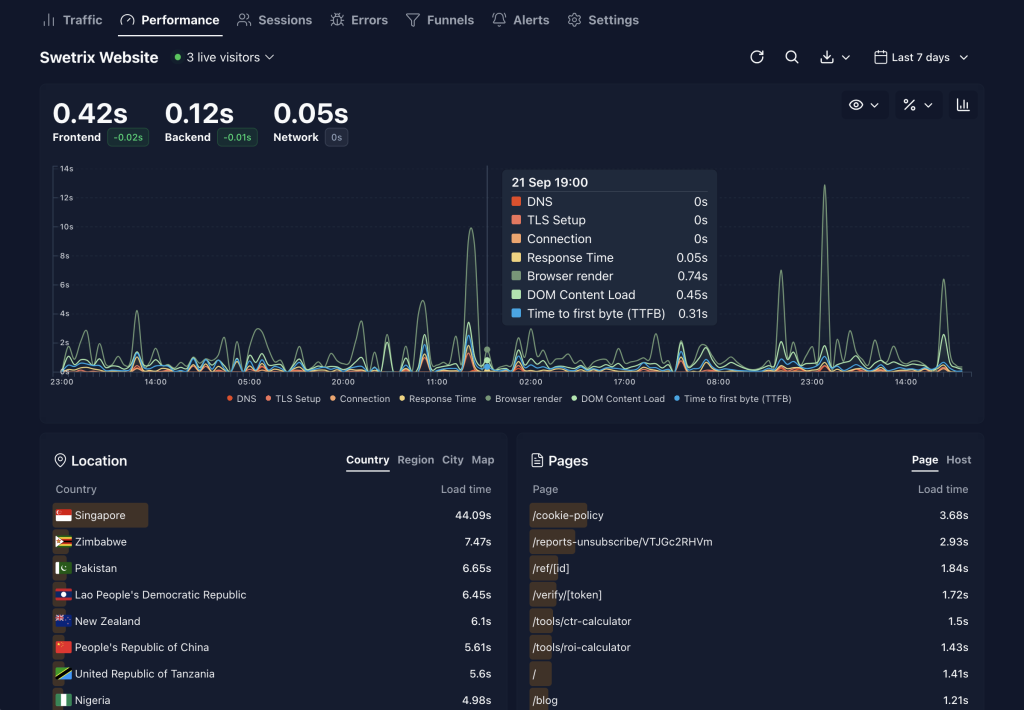
Head back to the Swetrix dashboard to see if the visits are being logged. Confirm that metrics like page views, unique visitors, and other data points are updating as expected.
This validation step might seem small, but it ensures that Swetrix is functioning correctly and ready to deliver insights on your website’s activity. With everything verified, you’re all set to start analyzing your traffic with confidence!
Conclusion: Successfully Set Up Swetrix on AlmaLinux 9
Congratulations! You’ve navigated through the essential steps to install and configure Swetrix on AlmaLinux 9. By now, you should have a robust analytics tool up and running, offering you insightful data while respecting user privacy.
With all dependencies installed and configurations finalized, your setup is ready to deliver valuable insights without unnecessarily complicating your server’s operations. You can now monitor your web traffic effectively, tweaking settings as needed to optimize performance.
Don’t forget to periodically check for updates from Swetrix to ensure you’re benefiting from the latest features and security improvements. Your web analytics game on AlmaLinux 9 is now in a league of its own. Happy analyzing!




