
Data is the new gold, and having the right tools to sift through it is crucial. Metabase is one of those tools, offering an elegant, open-source solution to simplify data analytics. Imagine turning your raw data into charts and dashboards without writing a single line of code!
If you’re running Ubuntu 24.04 and excited to set up Metabase, you’re in the right place. We’ll walk you through each step, from installation to configuration, ensuring you harness the full potential of your data.
Whether you’re a seasoned data analyst or a curious beginner, by the end of this guide, you’ll have a powerful analytics tool ready to drive insights from your data.
Installing Metabase on Ubuntu 24.04
System Requirements
Before diving in, let’s ensure your system is ready for Metabase. You’ll need a machine running Ubuntu 24.04 with at least 2GB of RAM, though 4GB is ideal for larger datasets. A modern multi-core processor will keep things running smoothly. Don’t forget about storage; a minimum of 10GB should be allocated to accommodate Metabase along with any future data needs. Make sure your system is updated with the latest packages and security patches! For reference, you can check out this guide on how to install and configure Node.js on Ubuntu 24.04 for more system setup tips.
Preparing the Environment
To kick things off, we’ll update package lists and upgrade any existing packages to ensure a clean slate. Open your terminal and punch in:
sudo apt update && sudo apt upgrade
Once everything is up-to-date, you’ll need to install Java, as Metabase runs on the Java Virtual Machine (JVM). You can install OpenJDK by entering:
sudo apt install openjdk-17-jre
With Java onboard, it’s a good time to check your firewall settings. Ensure ports you’ll use are open—by default, Metabase uses port 3000. Adjust your UFW (Uncomplicated Firewall) settings if necessary:
sudo ufw allow 3000
These steps set the stage for a smooth Metabase installation on your system. Next up, we’ll dive right into downloading and setting up Metabase itself! If you’d like to manage SSL for your instance, follow this resource on installing Let’s Encrypt SSL on Ubuntu with Apache web server.
Downloading and Setting Up Metabase
Downloading the Metabase Jar
Let’s kick off with grabbing the Metabase jar file, which is essential for running the application. Head over to your terminal and enter the following command to download the latest release directly:
wget https://downloads.metabase.com/v0.45.0/metabase.jar
Feel free to replace the version number with the most recent one available to keep things up-to-date! This command will download the jar file to your current directory.
Moving the Jar to a Permanent Location
With the jar file downloaded, it’s a good idea to place it in a permanent directory to keep your setup organized. Create a directory specifically for Metabase:
sudo mkdir -p /opt/metabase
Now, move the jar file into this directory to keep it tidy and easily accessible:
sudo mv metabase.jar /opt/metabase/
This step ensures that your Metabase setup has a dedicated space, making system maintenance and upgrades a breeze. Next, we’ll look at getting Metabase up and running! To host other open-source dashboards on your systems, check out how to install and configure Grafana on Debian 13.
Configuring Metabase as a Service
Creating a Systemd Service File
To keep Metabase running smoothly and automatically start on boot, we’ll configure it as a systemd service. This ensures it’s available whenever your server is running. Begin by creating a new service file:
sudo nano /etc/systemd/system/metabase.service
Inside the file, paste the following configuration:
[Unit]
Description=Metabase service
After=syslog.target
After=network.target

[Service]
Type=simple
User=metabase
ExecStart=/usr/bin/java -jar /opt/metabase/metabase.jar
Restart=always
StandardOutput=syslog
StandardError=syslog
SyslogIdentifier=metabase
Save and close the file. This configuration tells systemd how to manage the Metabase application.
Enabling and Starting the Service
With your service file in place, it’s time to enable and start Metabase. Enabling it ensures the service starts automatically during boot. Run the following command:
sudo systemctl enable metabase
To start Metabase, type:
sudo systemctl start metabase
To double-check everything is working, it’s wise to verify the service status:
sudo systemctl status metabase
You should see Metabase active and running. Congratulations, you’ve successfully configured Metabase as a service, ensuring it’s always ready when you need it!
Accessing Metabase and Initial Setup
Running Metabase the First Time
Now that everything’s in place, let’s fire up Metabase to see it in action. Navigate to the directory where you moved the Metabase jar file and run it using:
java -jar /opt/metabase/metabase.jar
This command will launch the application, and you’ll see logs in your terminal as it starts up. Metabase uses port 3000 by default, so you can access it by opening your web browser and going to http://localhost:3000. Here, you’ll be greeted by the welcome screen, signaling that Metabase is up and running. For more ways to monitor your web applications, consider trying Uptime Kuma on Ubuntu 24.04.
Configuring the Admin Account
The first time you access Metabase, you’ll be prompted to set up your admin account. Enter your email, create a strong password, and provide other necessary details to configure your account. This step sets up your primary access to the Metabase dashboard where you’ll manage users and data connections. If you want to integrate further analytics solutions into your workflow, you can follow the guide to install and configure Grafana on Debian 13.
Once your account is configured, the setup wizard will guide you through connecting your data sources. Congratulations! You’re now ready to explore and visualize your data with ease.
Conclusion
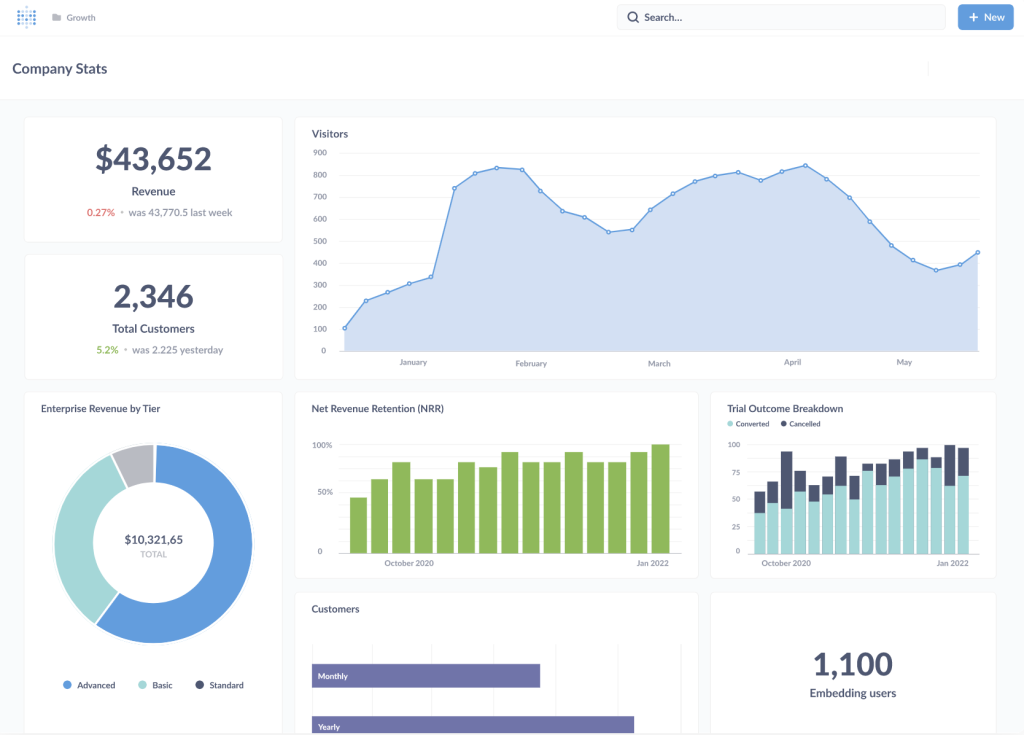
Congratulations on setting up Metabase on Ubuntu 24.04! You’ve unlocked a powerful tool that transforms data into meaningful insights effortlessly. Now, you can explore, visualize, and share your data stories, making information accessible in straightforward, interactive dashboards.
With Metabase in your toolkit, you’re well-equipped to dive deeper into your datasets and unlock their potential. Whether you’re elevating business strategy or simply satisfying your curiosity, Metabase makes data analysis a breeze. For an alternative analytics platform, check out how to install and configure Umami on Ubuntu 24.04 for privacy-focused web analytics.
Remember, the journey doesn’t end here. Regular updates and exploring new features can further enhance your analytics experience. Here’s to making data-driven decisions and empowering your projects with insights that matter!




