
Want to dive into website analytics without all the clutter? Umami is your go-to solution for simple, privacy-focused statistics. Built from the ground up to be easy on the eyes and user-friendly, it’s an open-source alternative to other costly options out there.
If you’re running Ubuntu 24.04, you’re in luck. This guide will walk you through every step needed to install and configure Umami successfully.
Using straightforward commands, you’ll have it up and running in no time, allowing you to track your website’s activity seamlessly.
Ready to get started and enhance your data insights? Let’s dive in!
Prerequisites for Installing Umami on Ubuntu 24.04
Before diving into installation, let’s ensure you meet all the prerequisites. Knowing what’s needed upfront will save you time and potential headaches.
System Requirements
Firstly, make sure your system is up to date. For Umami to run smoothly, you’ll need at least 2GB of RAM and a dual-core processor. While it can function on less, these specs will guarantee optimal performance and smooth data processing.
You’ll also want a stable internet connection to download necessary files and updates. Running a reliable server, preferably a VPS or dedicated server, will streamline the setup.
Necessary Dependencies
Now, let’s tackle dependencies. Umami primarily requires Node.js and PostgreSQL. Make sure you have PostgreSQL version 12 or above, as well as Node.js version 14 or newer.
Don’t forget to ensure npm, the Node package manager, is installed, which typically comes bundled with Node.js. Besides that, having Git set up on your system will help in fetching Umami’s source code.
Got these prerequisites covered? Great! You’re now poised to begin the installation process.
Step-by-Step Umami Installation Guide
Now that you’re ready to install Umami, let’s break down the process into simple, manageable steps. No fluff, just action.
Downloading the Umami Package
Start by opening your terminal. You’ll want to clone the Umami repository from GitHub. Type the following command:
git clone https://github.com/mikecao/umami.git
Navigate into the downloaded directory:
cd umami
This will set you up with the latest version of Umami’s source code right on your system.
Running the Installation Script
Time to get your hands a little dirty! Begin by installing the necessary Node.js packages. In the Umami directory, run:
npm install
This installs all the necessary modules required to run Umami. Afterward, you’ll want to set up your database. Execute the following script to initialize your database configuration:
npm run init
This will prompt you to input PostgreSQL credentials and set up the initial database.
With these steps, the backbone of your analytics setup is ready. Stay tuned as we delve into configuration!
Configuring Umami on Your Server
With Umami installed, it’s time to configure it so you can start collecting valuable insights. This part is crucial to tailor Umami to fit your specific needs.
Initial Configuration Settings
Once the installation is complete, navigate to the config.js file in your Umami directory. This file contains all the initial settings you’ll need to adjust. Focus first on defining your hostname and port. By default, Umami uses port 3000, but you can change it based on your preferences or server setup.
Make sure your configuration aligns with your server’s specifications and intended use. This sets the stage for a streamlined analytics experience.
Connecting Your Database
With the basic settings in place, let’s connect to your PostgreSQL database. Open the .env file in the Umami directory and input your database credentials. It will look something like this:
DATABASE_URL=postgresql://username:password@localhost:5432/database_name
Double-check that the username, password, and database name match the ones you’ve set up with PostgreSQL. Save your changes, and you’re ready to roll!
With everything connected, you’ll be primed to gather all the key metrics you need. Happy data tracking!
Testing Your Umami Installation
After putting in the effort to install Umami, it’s crucial to make sure everything is running as it should. Let’s ensure your setup is good to go!
Verifying Installation Steps
To verify your installation, start by launching your server. Open a terminal and navigate to your Umami directory. Run the following command to start the application:
npm start
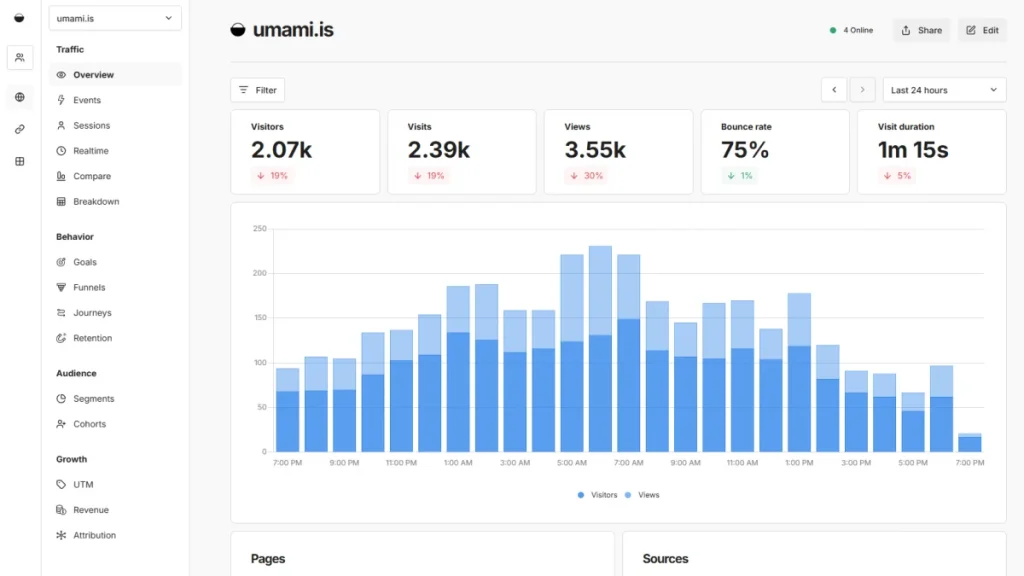
Now, open your preferred web browser and type http://localhost:3000. If you see the Umami login screen, congratulations, your installation is working perfectly!
Log in with the default credentials (admin/umami) to ensure you can access the dashboard. Remember to change these credentials later for security.
Troubleshooting Common Issues
If something doesn’t seem right, don’t panic. Common hiccups include incorrect database configurations or missing dependencies. Double-check your .env file to confirm your database credentials are correct.
Another frequent issue is related to Node.js or PostgreSQL versions. Ensure you’ve installed the correct versions as specified earlier. If all else fails, restarting your server might just do the trick.
With that, you should have a fully operational Umami installation on Ubuntu 24.04. Happy analytics tracking!
Conclusion
And there you have it! You’ve successfully installed and configured Umami on your Ubuntu 24.04 system. With this setup, you can now monitor your website traffic with ease and without compromising privacy.
Umami offers a sleek, user-friendly interface that allows you to focus on what truly matters: understanding your audience and enhancing their experience. The journey from installation to analytics may seem daunting at first, but with each step, you’ve unlocked valuable insights into your site’s performance.
Remember, the digital world is constantly evolving, and having the right tools like Umami at your disposal makes staying ahead both a manageable and enjoyable process.
So go ahead, explore the analytics world, and watch your understanding of user behavior take flight. Happy tracking!




