
Are you ready to elevate your web traffic management with Traefik? This lightweight, cloud-native edge router is the perfect companion for your containerized apps. In this guide, we’ll walk you through the steps to install Traefik on Ubuntu 24.04, ensuring a smooth setup for your container orchestration needs.
Whether you’re managing microservices, deploying on Docker, or orchestrating Kubernetes clusters, Traefik offers seamless integration. It dynamically reconfigures itself with changes in your environment, allowing for straightforward load balancing and SSL termination.
Getting started is a breeze. With just a few commands, you’ll have Traefik up and running, ready to efficiently route your container traffic. So grab your Ubuntu terminal, and let’s dive into a quick and straightforward installation journey!
System Requirements for Traefik on Ubuntu 24.04
Before diving into the installation process, let’s make sure your environment is ready to roll. Ensuring your system meets these requirements will pave the way for a seamless installation experience.
First, you’ll need a running instance of Ubuntu 24.04. This can be on a physical machine, a virtual machine, or a cloud server—whichever you prefer. Just ensure it’s updated to the latest package versions for security and compatibility.
Since Traefik runs on Docker, having Docker installed is a must. If you haven’t set that up yet, don’t worry—it’s a quick install. Make sure your Docker version is recent, as Traefik thrives on the latest features and improvements.
Finally, ensure your system has at least 2GB of RAM and a decent amount of CPU resources. While Traefik is lightweight, having some headroom won’t hurt, especially if you’re managing multiple services.
That’s it! With these checked off, you’re ready to start the installation and configuration of Traefik on your Ubuntu system.
Update Ubuntu 24.04 for Traefik Installation
Before we jump into installing Traefik, let’s first ensure your Ubuntu environment is fully updated. This not only helps with security but also guarantees compatibility with the latest Traefik features.
Start by opening your terminal. It’s time to refresh your package lists. Run the command:
sudo apt updateThis command updates the list of available packages and versions but doesn’t install or upgrade any packages just yet.
Next, execute the following command to upgrade all the packages and ensure your system is running the latest and greatest:
sudo apt upgrade -yIncluding the -y flag automatically agrees to install the updates, ensuring a smoother, uninterrupted process.
Finally, let’s clean up unnecessary packages with:
sudo apt autoremove -yBy removing the outdated packages, you ensure that your system is lean and ready for the Traefik installation. With Ubuntu 24.04 all set, it’s time to proceed to the next step—installing Docker if you haven’t already.
Install Traefik on Ubuntu 24.04
With your system updated and Docker ready, it’s time to get Traefik installed. We’ll use Docker to run Traefik in a container for an efficient, isolated setup.
Start by creating a Docker network for Traefik. This will facilitate communication between Traefik and your other containers. Launch your terminal and enter:
docker network create traefik-netNext, create a directory for your Traefik configuration file. This file will tell Traefik how to behave. Run:
mkdir -p ~/traefik-configNow, create a traefik.yml file inside this directory. Open your favorite text editor and add the basic Traefik configuration. You can customize these settings as needed:
entryPoints:
  web:
    address: ":80"
api:
  insecure: true
  dashboard: true
With the configuration in place, spin up the Traefik container with:
docker run -d
  --name traefik
  --network traefik-net
  -p 80:80
  -p 8080:8080
  -v ~/traefik-config/traefik.yml:/etc/traefik/traefik.yml
  traefik:v2.6
And voilà! Traefik should be running, ready to handle your service requests with ease.
Configure Traefik on Ubuntu 24.04
Now that Traefik is up and running, let’s configure it to efficiently route your traffic. We’ll start with crafting a basic setup and then secure it with HTTPS.
Basic Traefik Configuration Files
Your journey begins by customizing the traefik.yml file. This is where you’ll define key settings like entry points and providers. Navigate to your configuration directory where you created this file earlier. Here’s a simple example to get you started:
entryPoints:
  web:
    address: ":80"

providers:
  docker:
    exposedByDefault: false

api:
  dashboard: true
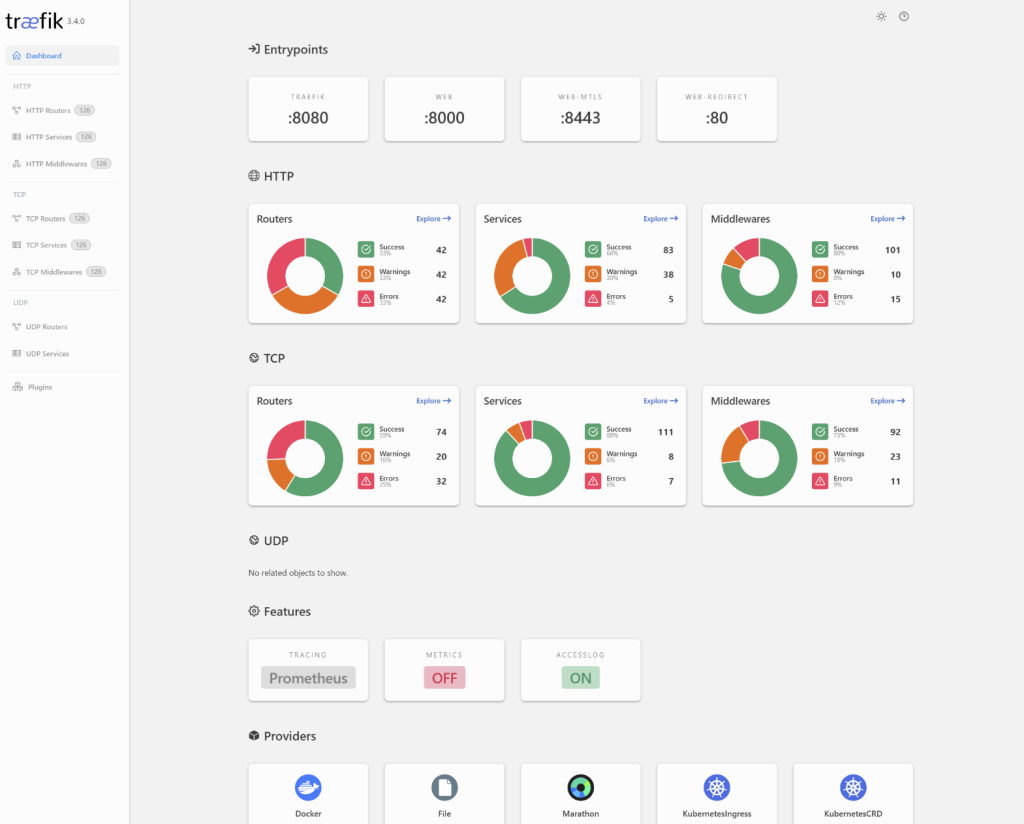
This setup enables the dashboard and establishes an HTTP entry point. Adjust these settings as necessary to suit your infrastructure needs.
Secure Traefik with HTTPS
Securing your services with HTTPS is critical. Let’s secure Traefik using Let’s Encrypt, a free, automated certificate authority. Update your traefik.yml file to include:
entryPoints:
  websecure:
    address: ":443"

certificatesResolvers:
  myresolver:
    acme:
      email: your-email@example.com
      storage: acme.json
      httpChallenge:
        entryPoint: web
Make sure the acme.json file exists in the Traefik directory and has the correct permissions set:
touch acme.json
chmod 600 acme.json
This configuration listens for HTTPS traffic on port 443 and automatically handles certificate requests and renewals. With Traefik configured and secured, your container traffic is all set to travel smoothly.
Conclusion
You’ve now taken a significant step in optimizing your web traffic management with Traefik on Ubuntu 24.04. From installing Docker and Traefik to configuring secure connections with HTTPS, you’ve set up a robust infrastructure capable of dynamically managing services.
With Traefik’s powerful features in place, you’re equipped to handle traffic across multiple containers effortlessly. Remember, a well-configured Traefik setup is pivotal for maintaining performance and security in your applications.
Feel free to tweak and explore additional Traefik features to better suit your specific needs as you grow and scale your projects. Whether you’re hosting personal projects or managing a fleet of microservices in production, Traefik is your flexible and reliable partner. Happy routing!




